
How to Add Dynamic Fields in Vtiger

Home » Knowledge Base » Design Tools » Vtiger » How to Add Dynamic Fields in Vtiger

Vtiger is a versatile CMS that you can use for free with all AwardSpace hosting plans. The CMS offers numerous options to manage your online business, workflows, and team roles. Among other useful tweaks, Vtiger also provides you with dynamic fields and layouts that help you organize data, teams, and processes just the way that is most useful for you and your business. With such options, you can make the CRM more effective, reduce clutter, and provide users with the information that is important for their role and workflows.

In this article, we show you how to add dynamic fields and layouts in Vtiger.


How to Add Dynamic Fields and Layouts in Vtiger

The process is quite straightforward and requires only a few steps and a few minutes of your time. Here’s how to proceed.

First, log in to Vtiger.

Once within the hosting panel, click the sandwich menu icon at the top left of the screen:
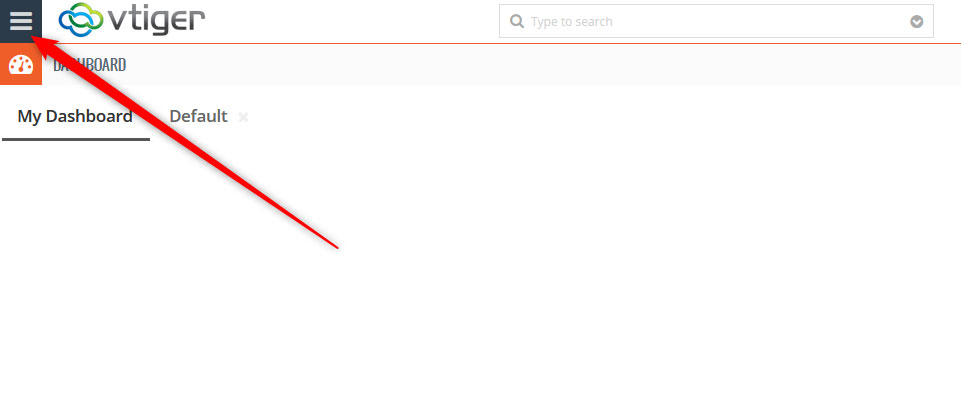
Head to the Vtiger main menu


Then, from the menu option that would appear, head to Settings -> CRM Settings:
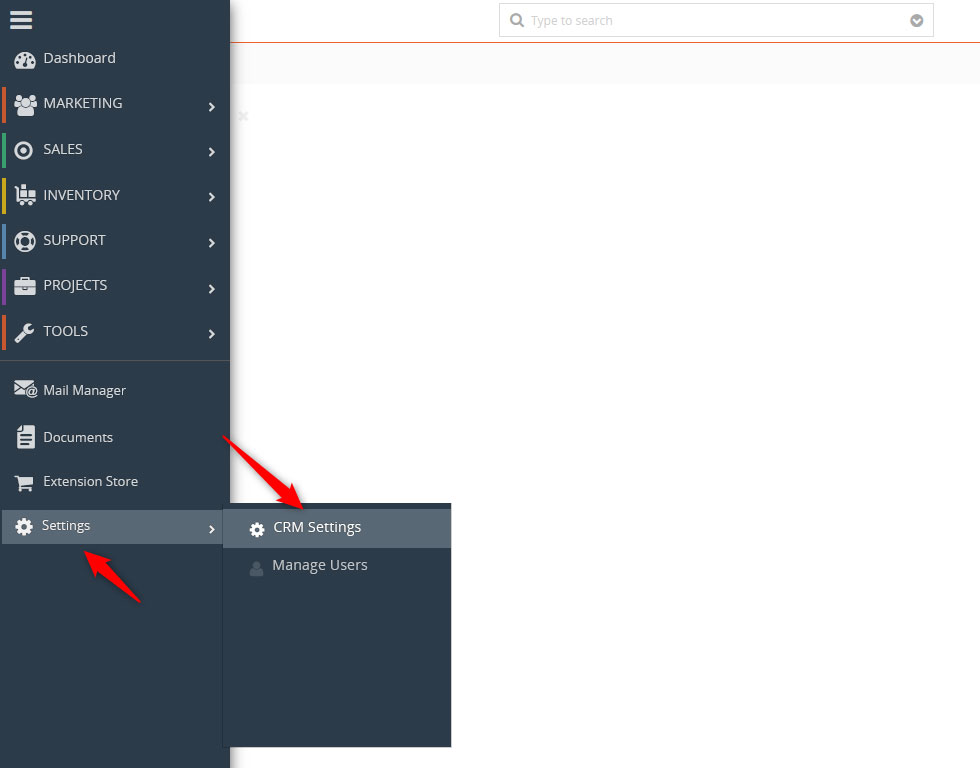
Vtiger CMS Settings


A new page should open. Once you see it, via the left sidebar, click on Module Management and select Module Layout & Fields:
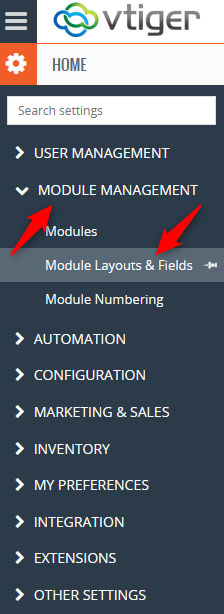
Head to Layouts & Fields


Yet a new page should open. This is the place where you can add layouts and modules, as well as manage all settings related to them.

Now, to add a field, click on the + Add Custom Field button right above the Fields section:
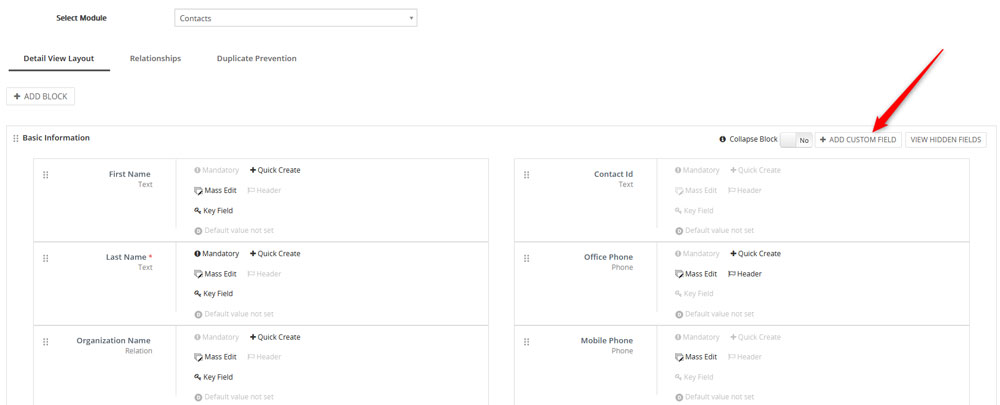
Add a Custom FIeld in Vtiger


Once you click the button, a dialogue box should appear. Within this box, add the details about the field you are about to create, and then click on Save:
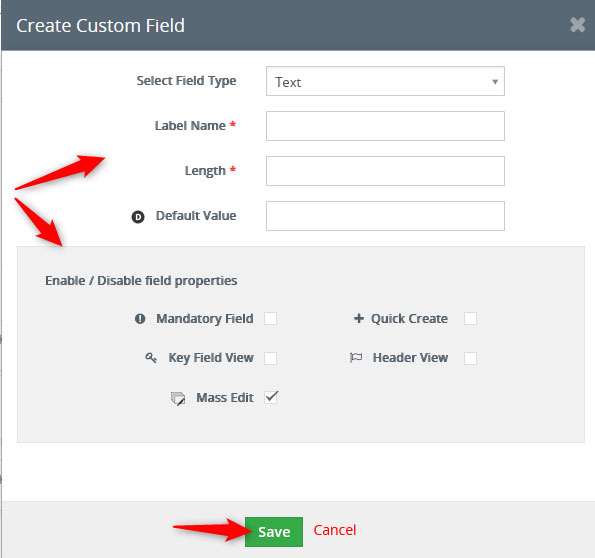
Add field details and click Save


Now you have managed to create a field.

To manage any of your fields, simply hover your mouse button over one and click on the pencil icon that appears:
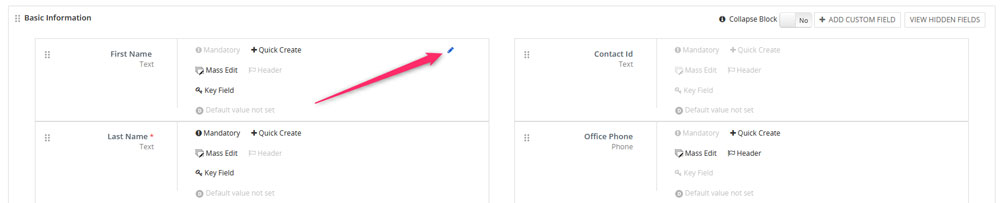
Edit a field by clicking the pencil icon


A box with options should appear. From there, you can change all field settings. Once you are ready with your changes, click on Save:
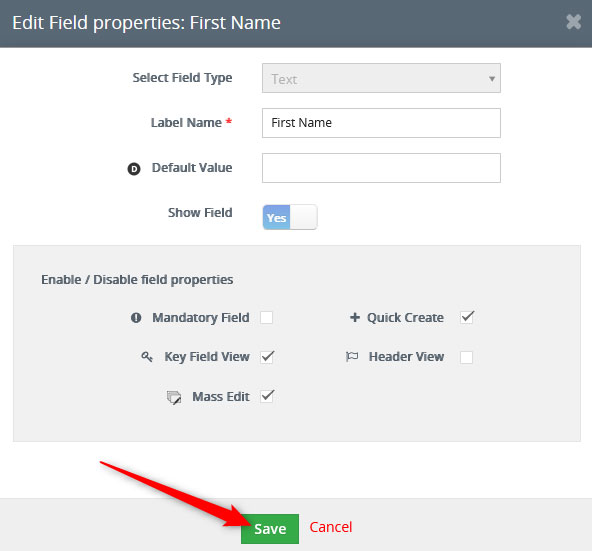
Save the changes you have just made


Conclusion

Adding fields to Vtiger is a simple process, but a handy one. It helps you align the CRM settings to fit all your business processes. By adopting such customizations, Vtiger can become quite a handy companion for all your business endeavors.

Was this post helpful?

i

Relevant tags:

Connect

Latest posts:

How to Check My Auto Renewals

To check your AwardSpace hosting plan auto-renewals, first log in to the admin dashboard. Then, head to Wallet, within the Orders & Invoices section:   After that, click the Auto Renewals tab, where you can check any relevant information about your hosting...

How to Check My Payment Requests

To check your payment requests, first log in to the AwardSpace hosting panel. Then, head to Wallet within the Orders & Invoices category:   Then, click the Payment Requests tab. There, you can browse all the information you need about your...

How to Check My Invoices

To check your invoices in AwardSpace, first log in to the hosting panel. From there, head to Invoices within the Orders & Invoices category:   From this place, you can browse order references, payment orders, payment types, order dates, and various...

How to Check My Wallet Flow

To check your wallet flow, first log in to the AwardSpace hosting panel. Then, click on Wallet within Payments & Invoices:   After that, click the Wallet Flow tab. This is where you can see details about your wallet flaw:

How to Check My Incomplete Orders

To check your incomplete orders, first log in to the AwardSpace hosting panel. Then, head to Incomplete Orders within Orders & Invoices:   Then, you can check the list within the Incomplete Orders tab:  


Create a website for free!


Free forever

Our Support Team is Here to Help


If you need any questions answered, don't hesitate and contact us. Click the button below and follow the instructions. You can expect an answer within an hour.


Contact AwardSpace


iNewest knowledge base articles

How to Check My Auto Renewals

To check your AwardSpace hosting plan auto-renewals, first log in to the admin dashboard. Then, head to Wallet, within the Orders & Invoices section:   After that, click the Auto Renewals tab, where you can check any relevant information about your hosting...

How to Check My Payment Requests

To check your payment requests, first log in to the AwardSpace hosting panel. Then, head to Wallet within the Orders & Invoices category:   Then, click the Payment Requests tab. There, you can browse all the information you need about your...

How to Check My Invoices

To check your invoices in AwardSpace, first log in to the hosting panel. From there, head to Invoices within the Orders & Invoices category:   From this place, you can browse order references, payment orders, payment types, order dates, and various...

How to Check My Wallet Flow

To check your wallet flow, first log in to the AwardSpace hosting panel. Then, click on Wallet within Payments & Invoices:   After that, click the Wallet Flow tab. This is where you can see details about your wallet flaw:

How to Check My Incomplete Orders

To check your incomplete orders, first log in to the AwardSpace hosting panel. Then, head to Incomplete Orders within Orders & Invoices:   Then, you can check the list within the Incomplete Orders tab:  

How to Check My Canceled Orders

To check your canceled orders with AwardSpace, first, log in to the hosting panel. Then, head to Caneled Orders within the Orders & Invoices category:   Then, within the Canceled Orders tab, you can browse your canceled orders with AwardSpace:

Even more web tutorials

Check out our web hosting knowledge base and the WordPress tutorials to learn more, and be better prepared for your website creation and maintenance journey.