How to Use Modules in TYPO3

Home » Knowledge Base » Design Tools » TYPO3 » How to Use Modules in TYPO3

TYPO3 is a CMS based on a modular architecture, meaning that users can use various built-in tools and add-ons to manage content, other users, configurations, and more.

In this guide, we share how to use modules in TYPO3, so you get the most out of them.


What are Modules in TYPO3

Modules in TYPO3 are default sections at the backend of your TYPO3 project that allow you to manage different aspects of your website. Each accessible module serves a specific purpose such as editing pages, managing files, configuring settings, managing users, and similar.

Modules in TYPO3 are categorized into the following groups and sub-groups:

Web Modules:

  • Page: allows you to manage your pages and their content.
  • List: Grants you a database view of records such as content templates and plugins.
  • View: Preview how your changes appear on your website.


File Modules:

  • Filelist: Allows you to manage file storage, upload media, and organize file folders


User Tools:

  • Task Center: Allows you to make personal notes, reminders, and gives you access to some management tools.
  • User Settings: Grants you customization options for the backend interface for you and your team.


Admin Tools:

  • Maintenance: Clear cache, perform system checks.
  • Extensions: Install, delete, configure, and update TYPO3 extensions
  • Log: View system messages and activity logs.


System Modules:

  • Backen Users: Manage team accounts and permissions
  • Workspaces: manage, edit, add, and remove workspaces
  • Configuration: View system and extension configuration


How to Use Modules in TYPO3

Modules are quite versatile and can be used in numerous ways. Here’s how to proceed.


Step 1: Log in to TYPO3 Admin Dashboard

The first step in the process is to log in to TYPO3. The admin dashboard is the place from which you can manage all your project settings, modules, and colleagues.


Step 2: Use a Module

Now that you have entered the TYPO3 admin panel, it is time to learn how to use modules. Depending on the type of module you wish to use, the menu and options can vary. In this example, we share how to edit a Page module.

The first step is to navigate to Web -> Page via the TYPO3 admin dashboard:
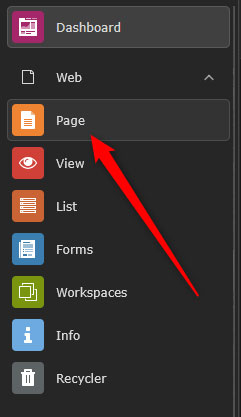
Access the Pages module in TYPO3


Then, choose a page from the site tree via the left sidebar:
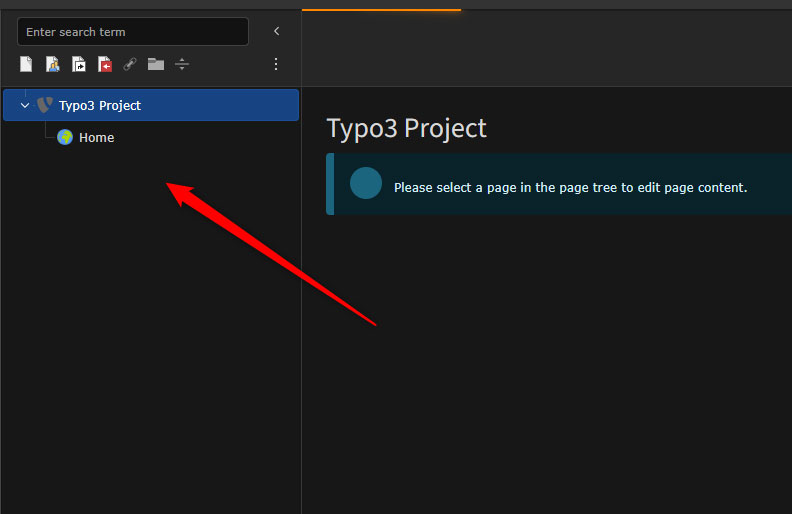
Select TYPO3 page to edit


Now, you can use the content areas (also called colPos) to:

  • Add a new content element
  • Edit existing texts and media files
  • Drag and drop blocks to rearrange the layout


Step 3: Customize a Module Menu

You can control which modules are visible and accessible via the dashboard. This helps your team manage content more easily and quickly. To do so:

Navigate to System -> Backend Users:
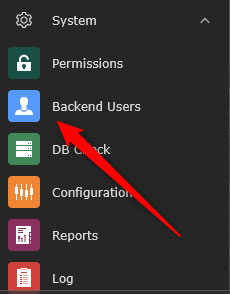
Access the Backend Users menu in TYPO3


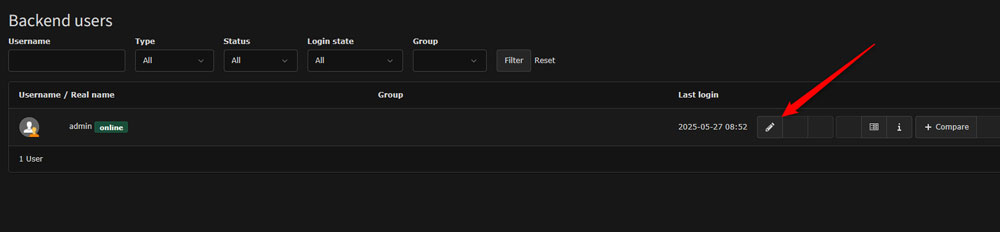
Then, select a user:

Select a user in TYPO3


After that, via the Module Permissions tab, select which options are accessible for this user. This will include these elements in the navigational menu of the selected user:
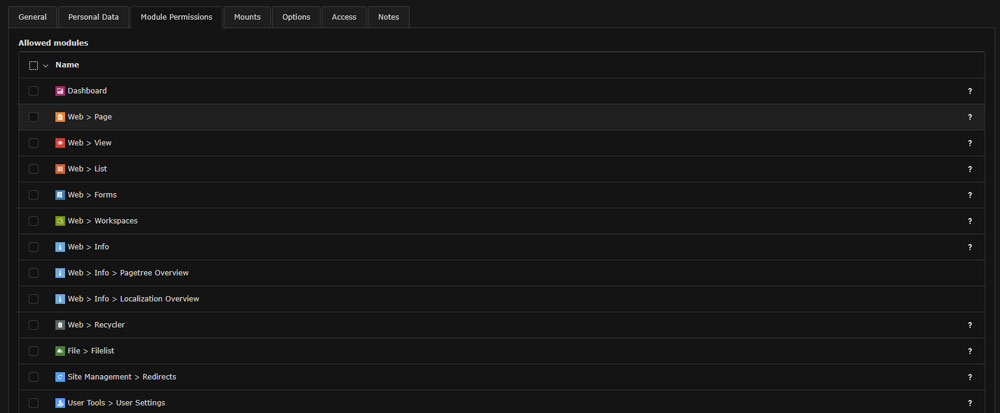
Add permissions for each module and user


Tips and Tricks

  • Add the modules you and your team use the most to the Favourites tab for quick access.
  • Use the search bar above each module menu to quickly search for and find modules.
  • Collapse the unused categories and modules to stay organized.
  • Explore the custom modules section via extensions to add some new functionalities to your TYPO3 project.

Conclusion

Understanding how to use modules in TYPO3 grants you complete control over your website. Via modules, you can manage all aspects of your project via several simple steps and clicks.

 

Was this post helpful?

i

Relevant tags:

Connect

Latest posts:

How to Check My Auto Renewals

To check your AwardSpace hosting plan auto-renewals, first log in to the admin dashboard. Then, head to Wallet, within the Orders & Invoices section:   After that, click the Auto Renewals tab, where you can check any relevant information about your hosting...

How to Check My Payment Requests

To check your payment requests, first log in to the AwardSpace hosting panel. Then, head to Wallet within the Orders & Invoices category:   Then, click the Payment Requests tab. There, you can browse all the information you need about your...

How to Check My Invoices

To check your invoices in AwardSpace, first log in to the hosting panel. From there, head to Invoices within the Orders & Invoices category:   From this place, you can browse order references, payment orders, payment types, order dates, and various...

How to Check My Wallet Flow

To check your wallet flow, first log in to the AwardSpace hosting panel. Then, click on Wallet within Payments & Invoices:   After that, click the Wallet Flow tab. This is where you can see details about your wallet flaw:

How to Check My Incomplete Orders

To check your incomplete orders, first log in to the AwardSpace hosting panel. Then, head to Incomplete Orders within Orders & Invoices:   Then, you can check the list within the Incomplete Orders tab:  


Create a website for free!


Free forever

Our Support Team is Here to Help


If you need any questions answered, don't hesitate and contact us. Click the button below and follow the instructions. You can expect an answer within an hour.


Contact AwardSpace


iNewest knowledge base articles

How to Check My Auto Renewals

To check your AwardSpace hosting plan auto-renewals, first log in to the admin dashboard. Then, head to Wallet, within the Orders & Invoices section:   After that, click the Auto Renewals tab, where you can check any relevant information about your hosting...

How to Check My Payment Requests

To check your payment requests, first log in to the AwardSpace hosting panel. Then, head to Wallet within the Orders & Invoices category:   Then, click the Payment Requests tab. There, you can browse all the information you need about your...

How to Check My Invoices

To check your invoices in AwardSpace, first log in to the hosting panel. From there, head to Invoices within the Orders & Invoices category:   From this place, you can browse order references, payment orders, payment types, order dates, and various...

How to Check My Wallet Flow

To check your wallet flow, first log in to the AwardSpace hosting panel. Then, click on Wallet within Payments & Invoices:   After that, click the Wallet Flow tab. This is where you can see details about your wallet flaw:

How to Check My Incomplete Orders

To check your incomplete orders, first log in to the AwardSpace hosting panel. Then, head to Incomplete Orders within Orders & Invoices:   Then, you can check the list within the Incomplete Orders tab:  

How to Check My Canceled Orders

To check your canceled orders with AwardSpace, first, log in to the hosting panel. Then, head to Caneled Orders within the Orders & Invoices category:   Then, within the Canceled Orders tab, you can browse your canceled orders with AwardSpace:

Even more web tutorials

Check out our web hosting knowledge base and the WordPress tutorials to learn more, and be better prepared for your website creation and maintenance journey.