
How To Delete an Account in Google Analytics 4

Home » Help » Getting traffic » How To Delete an Account in Google Analytics 4

Although Google Analytics 4 provides a wide range of tracking options and analysis approaches, a single limitation remains: you can’t permanently delete a Google Analytics 4 account. However, you can remove access and deactivate data collection, so this account becomes inactive.

In the following paragraphs, we share how to do so.


Why Can’t You Fully Delete a Google Analytics 4 Account

Google doesn’t provide the option to fully delete a GA4 account. This is due to two reasons:

  1. Users log in to GA4 with their own Google Account, and you can’t simply delete it.
  2. Full delete option is not provided due to the fact that Google aims at ensuring data integrity and prevent accidental loss of historical tracking data.

However, there’s still a lot you can do to remove an account from your Google Analytics 4 data pool.


What Can You Do To Remove a GA4 Account

There are a total of 2 approaches you can undertake to remove a Google Analytics 4 account:

  1. Remove Users from the Account
  2. Stop Data Collection

In the next sections, we share how to proceed with both approaches.

Remove Users from the Google Analytics 4 Account

If you no longer want access to a given GA4 account, or, for example, you are offboarding someone, you can remove user access by doing the following:

Open Google Analytics.

Click the Admin icon at the lower left corner of the page:
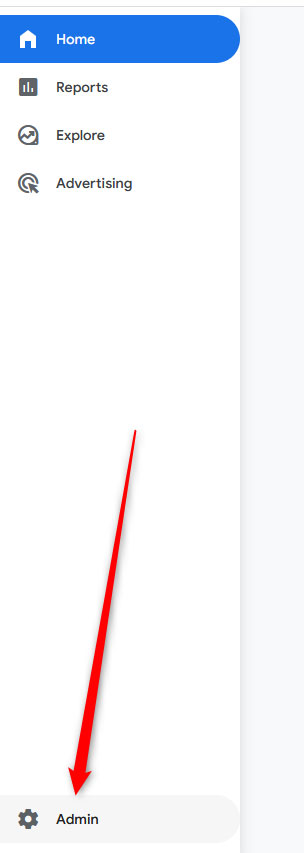
Acces the admin menu in GA4 to remove an account


Then, head to Account->Account Access Management:
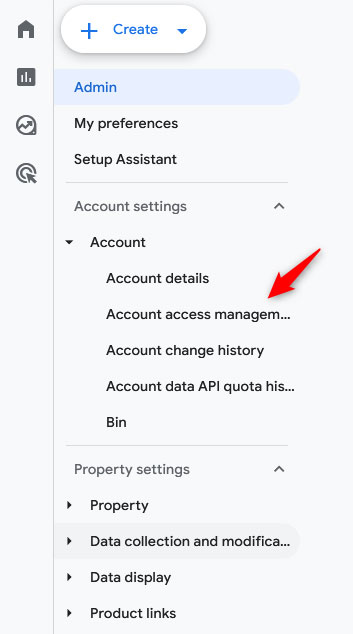
Navigate to account management in GA4


You will see a new page with a list of all users who have access to this GA4 account. Locate the one you wish to remove and click the 3 dots to the right of each user name:
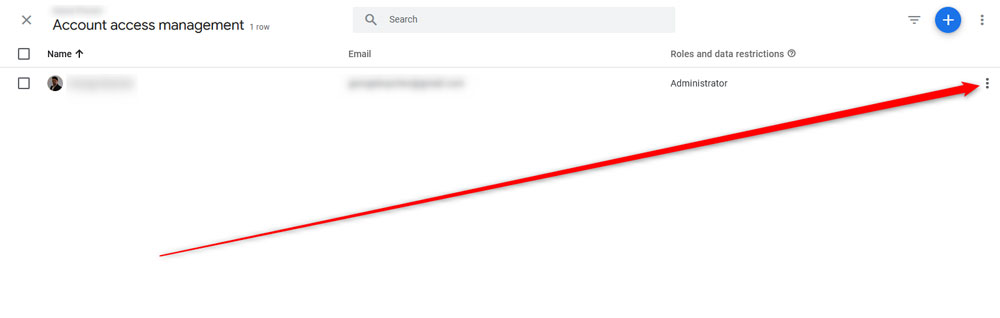
Locate the user you wish to remove from GA4


Then, click on Remove Account or Remove Yourself:
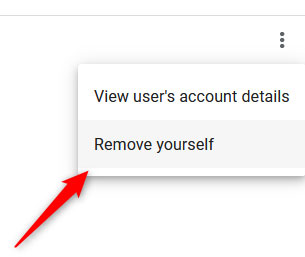
Remove the user from GA4


N.B! Only Admins can manage permissions. If you are not an admin in the GA4 account, then you need to contact someone who is.


Stop Data Collection

Should you also wish to completely get rid of the property, you can also stop data flow by:

  • Removing or disabling the GA4 tracking code from your website/app
  • Delete the Google Tag Manager container
  • Unlink all integrations such as Google Ads.

If you are not sure how to proceed, simply check our article on the topic, on How to Set Up Google Analytics on Your Website, and check the section on installing the tracking code. Then, simply do the opposite – delete the tracking code from your website or app.


Conclusion

Although you can’t completely delete a Google Analytics account, you can effectively remove it from your workflow and in this article we share the fastest and easiest way of doing so.

Was this post helpful?

i

Relevant tags:

Connect

Latest posts:

How to Purchase a Semi-Dedicated Hosting Plan

You can quickly and easily purchase a Semi-Dedicated hosting plan with AwardSpace. You only need a few clicks and a few minutes of your time. Here's what to do. First, log in to the AwardSpace hosting panel. Then, head to Semi-Dedicated Hosting in the Buy Services...

How to Purchase a VPS Hosting Plan

Purchasing а VPS hosting plan with AwardSpace is simple. You only need to follow a few steps, and you will have the setup made in no time. Here's how to proceed. First, log in to the AwardSpace hosting panel. Then, click on the Virtual Private Servers (VPS) icon...

How to Check My Hosting Limits

To check your hosting limits, follow these steps: First, log in to the hosting control panel. Then, via the dashboard, head to Hosting Settings:   After that, click the Hosting Limits tab:   Then, you will access the information about your account's hosting...


Create a website for free!


Free forever

Our Support Team is Here to Help


If you need any questions answered, don't hesitate and contact us. Click the button below and follow the instructions. You can expect an answer within an hour.


Contact AwardSpace


iNewest knowledge base articles

How to Purchase a Semi-Dedicated Hosting Plan

You can quickly and easily purchase a Semi-Dedicated hosting plan with AwardSpace. You only need a few clicks and a few minutes of your time. Here's what to do. First, log in to the AwardSpace hosting panel. Then, head to Semi-Dedicated Hosting in the Buy Services...

How to Purchase a VPS Hosting Plan

Purchasing а VPS hosting plan with AwardSpace is simple. You only need to follow a few steps, and you will have the setup made in no time. Here's how to proceed. First, log in to the AwardSpace hosting panel. Then, click on the Virtual Private Servers (VPS) icon...

How to Check My Hosting Limits

To check your hosting limits, follow these steps: First, log in to the hosting control panel. Then, via the dashboard, head to Hosting Settings:   After that, click the Hosting Limits tab:   Then, you will access the information about your account's hosting...

How to Access the Security Settings of My Domains

Accessing the security settings of your hosted domains is easy with AwardSpace. You can access the settings in just a few minutes by following the steps below. First, log in to the AwardSpace hosting panel. Then, head to the Domain Manager page by clicking the...

Even more web tutorials

Check out our web hosting knowledge base and the WordPress tutorials to learn more, and be better prepared for your website creation and maintenance journey.