How to set a default index page

Home » Knowledge Base » Control Panel » .htaccess Generator » How to set a default index page

In the dynamic world of web hosting, the ability to guide visitors through your website effortlessly is crucial for delivering a seamless user experience. At AwardSpace, we recognize the significance of effective navigation which is why we have included in our hosting plans .htaccess Generator’s Redirections feature. In this article, we’ll dive into the specific option within the Redirections menu – “Set Default Index Page” – and explore how this feature empowers you to streamline navigation on your website.

The Redirections Feature

Our .htaccess Generator’s Redirections feature is a robust tool designed to help you manage the flow of traffic on your website. From directing users to specific pages to handling various redirection scenarios, this feature provides a comprehensive set of options to enhance user experience and optimize your site’s navigation.

Set Default Index Page

The “Set Default Index Page” option within the Redirections menu allows you to define the default landing page for your website. This is the page that visitors will see when they access your domain without specifying a particular file or directory. By leveraging this feature, you can ensure that users are directed to the most relevant and engaging content right from the start.

Use Cases

Setting a default index page is a strategic move that can significantly impact how users engage with your website. Here are some key use cases where this feature proves invaluable:

  • Brand Showcase: Direct visitors to a custom landing page that showcases your brand, promotions, or key content, creating a memorable first impression.
  • Efficient Navigation: Simplify user navigation by guiding them to the main page or a central hub, reducing the chances of confusion and enhancing the overall user experience.
  • Content Highlight: Ensure that visitors are immediately presented with your latest content, promotions, or featured products by setting a dynamic default index page.

Step-by-Step Instructions

Implementing the “Set Default Index Page” feature with our .htaccess Generator is a straightforward process. Follow these steps to guide visitors seamlessly to your chosen default landing page:

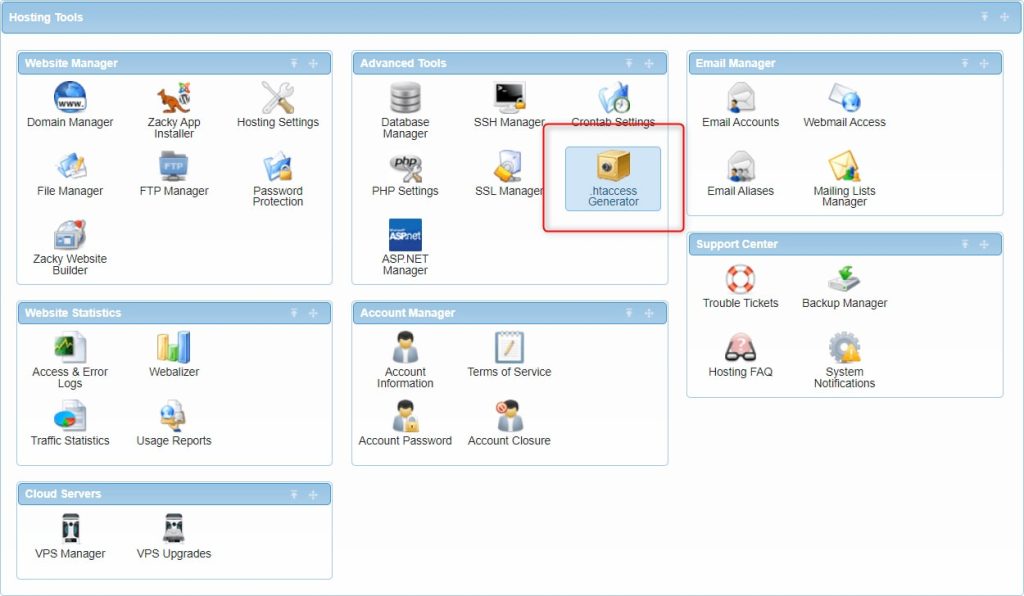
  1. Log in to your hosting control panel and find the “.htaccess Generator” within the “Advanced Tools” box in the “Hosting Tools” section.The .htaccess generator menu in the conrol panel.
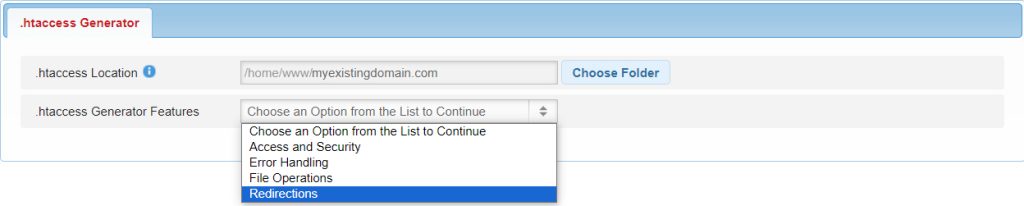
  1. Specify the directory to create your .htaccess file. Typically, this location would be the same as your domain’s main folder.The location of the .htaccess.
  1. Select “Redirections” from the “.htaccess Generator Features” menu.The redirection feature of the .htaccess generator.
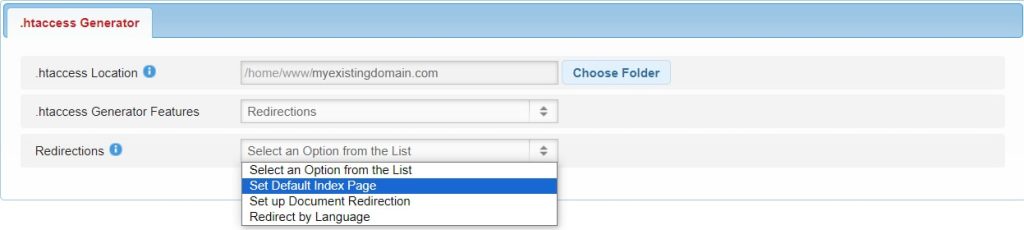
  1. Choose the “Set Default Index Page” option.The option to set a default index page.
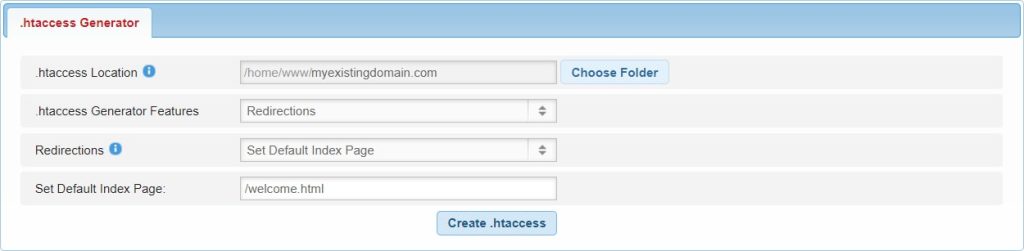
  1. Enter the filename or path of the page you want to set as the default index page.The location of the default index page.

By following these steps, you can harness the power of the “Set Default Index Page” feature to create a seamless and engaging entry point for visitors to your website.

In Conclusion

The Redirections feature of our .htaccess Generator, specifically the “Set Default Index Page” option, empowers you to shape the first impression of your website and streamline user navigation. Whether you aim to showcase your brand, enhance efficiency, or highlight specific content, this feature provides the flexibility to create a tailored experience for your visitors. Take control of your website’s navigation today with AwardSpace‘s .htaccess Generator and ensure a seamless journey for every visitor.

Was this post helpful?

i

Relevant tags:

Connect

Latest posts:

How to Fix 308 Permanent Redirect

308 Permanent Redirect is an HTTPS status code indicating that the requested resource has been permanently moved to another location. Similar to 301 Moved Permanently, 308 informs the user of the movement of a given online resource, and unlike the 301 redirect, 308...

How to Fix 301 Error Moved Permanently

The 301 Moved Permanently is an HTTP status code that indicates a permanent relocation of an online resource from a given URL to a new one. More technically, the moved resource has been moved to the new URL specified in the Location header. The HTTP 301 status code is...

How to Fix 307 Temporary Redirect

307 Temporary Redirect is a response HTTP status code that indicates the requested resource has been moved to a different URL for a limited period of time. Unlike a 301 permanent redirect, the 307 Temporary Redirect message indicates that the change is temporary and...

How to Access Crontab Settings

To access the crontab settings, first, you need to log in to your AwardSpace hosting panel. After you have logged in, head to Crontab Settings, located within the Advanced Tools category:   After you click the Crontab Settings icon, a new page should load. Once...

How to Check My Auto Renewals

To check your AwardSpace hosting plan auto-renewals, first log in to the admin dashboard. Then, head to Wallet, within the Orders & Invoices section:   After that, click the Auto Renewals tab, where you can check any relevant information about your hosting...


Create a website for free!


Free forever

Our Support Team is Here to Help


If you need any questions answered, don't hesitate and contact us. Click the button below and follow the instructions. You can expect an answer within an hour.


Contact AwardSpace


iNewest knowledge base articles

How to Fix 308 Permanent Redirect

308 Permanent Redirect is an HTTPS status code indicating that the requested resource has been permanently moved to another location. Similar to 301 Moved Permanently, 308 informs the user of the movement of a given online resource, and unlike the 301 redirect, 308...

How to Fix 301 Error Moved Permanently

The 301 Moved Permanently is an HTTP status code that indicates a permanent relocation of an online resource from a given URL to a new one. More technically, the moved resource has been moved to the new URL specified in the Location header. The HTTP 301 status code is...

How to Fix 307 Temporary Redirect

307 Temporary Redirect is a response HTTP status code that indicates the requested resource has been moved to a different URL for a limited period of time. Unlike a 301 permanent redirect, the 307 Temporary Redirect message indicates that the change is temporary and...

How to Access Crontab Settings

To access the crontab settings, first, you need to log in to your AwardSpace hosting panel. After you have logged in, head to Crontab Settings, located within the Advanced Tools category:   After you click the Crontab Settings icon, a new page should load. Once...

How to Check My Auto Renewals

To check your AwardSpace hosting plan auto-renewals, first log in to the admin dashboard. Then, head to Wallet, within the Orders & Invoices section:   After that, click the Auto Renewals tab, where you can check any relevant information about your hosting...

How to Check My Payment Requests

To check your payment requests, first log in to the AwardSpace hosting panel. Then, head to Wallet within the Orders & Invoices category:   Then, click the Payment Requests tab. There, you can browse all the information you need about your...

Even more web tutorials

Check out our web hosting knowledge base and the WordPress tutorials to learn more, and be better prepared for your website creation and maintenance journey.