How to change the name server (NS) records of my domain?

Home » Knowledge Base » Control Panel » Domain Manager » How to change the name server (NS) records of my domain?

Any changes to the Name Server records must be done at the Registrar’s website (the company you’ve obtained a domain name from) and can take up to 48 hours to propagate across the Internet. In this article, we are going to cover how to change the Name Servers via the AwardSpace Hosting Control Panel.

If you happen to have a domain registered with/transferred to AwardSpace, you can change its Name Server records by using any of the following methods.


Through the AwardSpace Hosting Control Panel

  1. Log in to the Hosting Control Panel of your AwardSpace account and navigate to your Domain Manager section
  2. Select the domain name you wish to change the Name Servers for and click on the Settings icon
  3. Click on the Name Servers tab

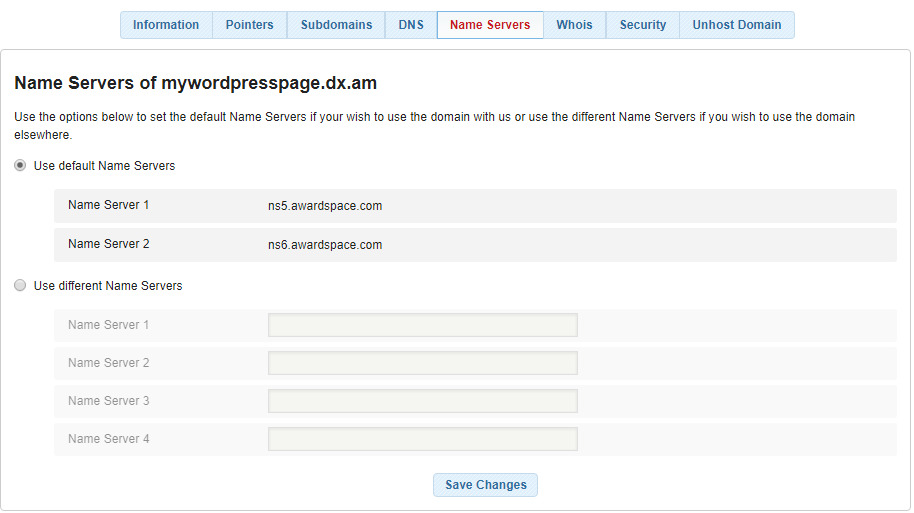
On the Name Servers page, you will be presented with the following two options:

  • Use default Name Servers
  • Use different Name Servers
name servers change

The first option can be used for resetting the Name Servers to their default values – ns5.awardspace.com and ns6.awardspace.com. When selected, your domain’s DNS A, MX, TXT, and CNAME records can be managed through your Awardspace web hosting account.

The second option allows you to connect your domain to a third-party hosting provider and manage your DNS zone records through their Control Panel.

To switch your domain name to point to a different provider, you should choose the second option. Some hosting providers may provide you with 2 NS records, some of them have 3 or even 4 NS records. Enter the custom Name Servers given by your hosting provider into the Name Server fields and click Save.


Submitting a Trouble Ticket

The last option is to submit a trouble ticket from your Hosting Control Panel and request your domain’s NS records to be changed.

You can open a ticket at any time via the Support Center section inside your AwardSpace account.
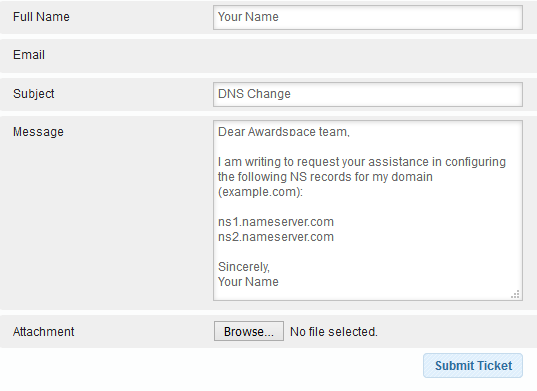
name servers change via trouble ticket

Was this post helpful?

i

Relevant tags:

Connect

Latest posts:

How to Fix 308 Permanent Redirect

308 Permanent Redirect is an HTTPS status code indicating that the requested resource has been permanently moved to another location. Similar to 301 Moved Permanently, 308 informs the user of the movement of a given online resource, and unlike the 301 redirect, 308...

How to Fix 301 Error Moved Permanently

The 301 Moved Permanently is an HTTP status code that indicates a permanent relocation of an online resource from a given URL to a new one. More technically, the moved resource has been moved to the new URL specified in the Location header. The HTTP 301 status code is...

How to Fix 307 Temporary Redirect

307 Temporary Redirect is a response HTTP status code that indicates the requested resource has been moved to a different URL for a limited period of time. Unlike a 301 permanent redirect, the 307 Temporary Redirect message indicates that the change is temporary and...

How to Access Crontab Settings

To access the crontab settings, first, you need to log in to your AwardSpace hosting panel. After you have logged in, head to Crontab Settings, located within the Advanced Tools category:   After you click the Crontab Settings icon, a new page should load. Once...

How to Check My Auto Renewals

To check your AwardSpace hosting plan auto-renewals, first log in to the admin dashboard. Then, head to Wallet, within the Orders & Invoices section:   After that, click the Auto Renewals tab, where you can check any relevant information about your hosting...


Create a website for free!


Free forever

Our Support Team is Here to Help


If you need any questions answered, don't hesitate and contact us. Click the button below and follow the instructions. You can expect an answer within an hour.


Contact AwardSpace


iNewest knowledge base articles

How to Fix 308 Permanent Redirect

308 Permanent Redirect is an HTTPS status code indicating that the requested resource has been permanently moved to another location. Similar to 301 Moved Permanently, 308 informs the user of the movement of a given online resource, and unlike the 301 redirect, 308...

How to Fix 301 Error Moved Permanently

The 301 Moved Permanently is an HTTP status code that indicates a permanent relocation of an online resource from a given URL to a new one. More technically, the moved resource has been moved to the new URL specified in the Location header. The HTTP 301 status code is...

How to Fix 307 Temporary Redirect

307 Temporary Redirect is a response HTTP status code that indicates the requested resource has been moved to a different URL for a limited period of time. Unlike a 301 permanent redirect, the 307 Temporary Redirect message indicates that the change is temporary and...

How to Access Crontab Settings

To access the crontab settings, first, you need to log in to your AwardSpace hosting panel. After you have logged in, head to Crontab Settings, located within the Advanced Tools category:   After you click the Crontab Settings icon, a new page should load. Once...

How to Check My Auto Renewals

To check your AwardSpace hosting plan auto-renewals, first log in to the admin dashboard. Then, head to Wallet, within the Orders & Invoices section:   After that, click the Auto Renewals tab, where you can check any relevant information about your hosting...

How to Check My Payment Requests

To check your payment requests, first log in to the AwardSpace hosting panel. Then, head to Wallet within the Orders & Invoices category:   Then, click the Payment Requests tab. There, you can browse all the information you need about your...

Even more web tutorials

Check out our web hosting knowledge base and the WordPress tutorials to learn more, and be better prepared for your website creation and maintenance journey.