
How to Add Charts to the Sidebar in SuiteCRM

Home » Knowledge Base » Design Tools » SuiteCRM » How to Add Charts to the Sidebar in SuiteCRM

Àlthough SuiteCRM doesn’t support adding charts directly to the sidebar, there is a simple method that you can use to achieve the effect. In this guide, we share how to do so.


How to Add Charts to the Sidebar in SuiteCRM

The process is comprised of a few simple-to-follow steps and will take no more than a few minutes of your time. Keep in mind that this is the simplest possible approach and you won’t be dealing with too technical matters, nor will you have to work with coding.

The first step in the process is to log in to SuiteCRM.

After that, click the Actions button at the top left of the page, and click on Add Dashlets:
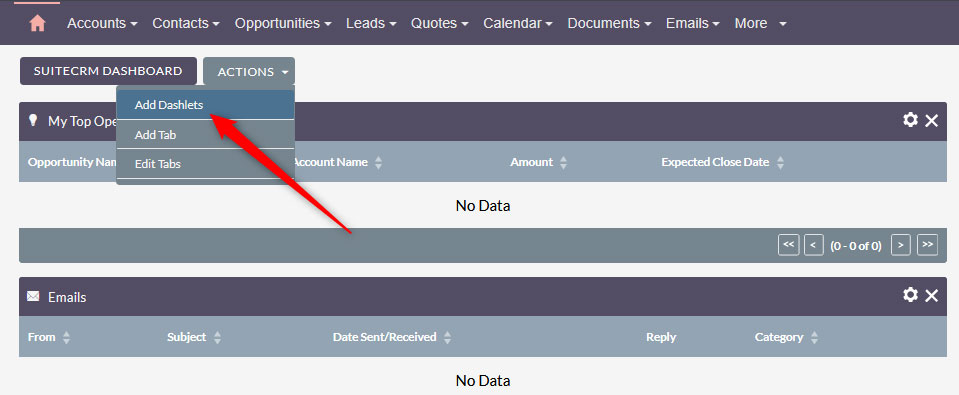
Add dashlets via the SuiteCRM dashboard


Once you click on the button, a dashlet list will pop up. From there, search for the chart option that you wish to use (for this example, we will use My Leads) and click it:
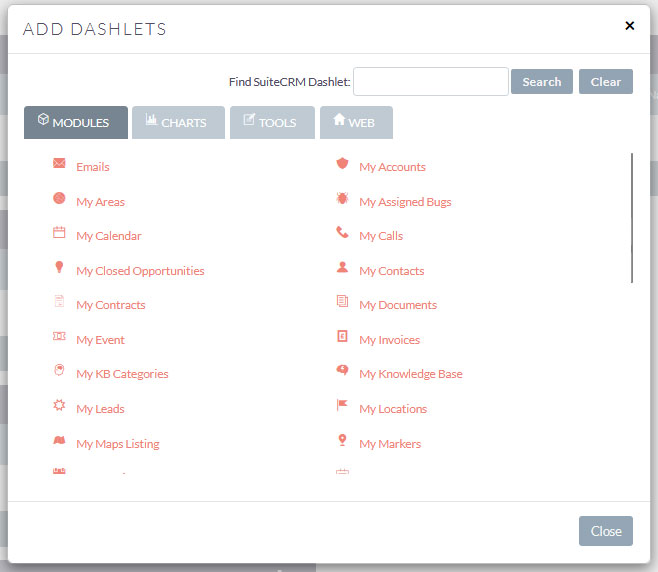
List of available dashlets in SuiteCRM


Once you click the module you wish to work with, it will be added to the dashboard. Then, close the pop-up window.

If you wish to understand more about dashlets and how to add them to your dashboard, read our article on the topic:

How to Add Dashlets to SuiteCRM

The next step in the process is to configure the dashlet you just added to the dashboard. To do so, check your SuiteCRM dashboard and locate the element. In most cases, it is at the top of the page. After you see it, click the gear icon at the top right corner of the module:
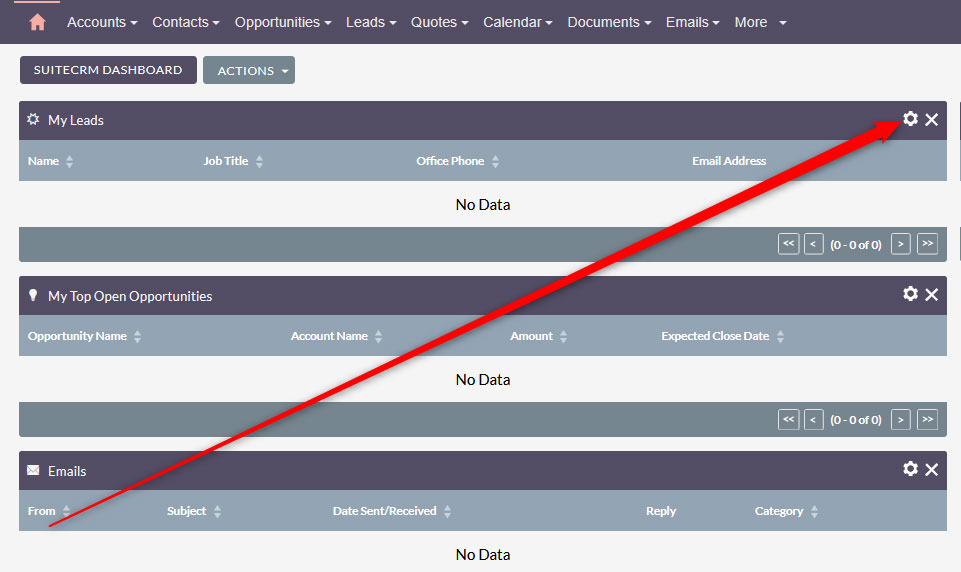
Click the options icon for each dashlet on your screen


A new box will appear. From there, you can change settings such as Title, Display Rows, and Display/Hide Columns. Adjust the settings in a way that fits your working preferences the best and then click Save, so SuiteCRM applies and remembers the changes:
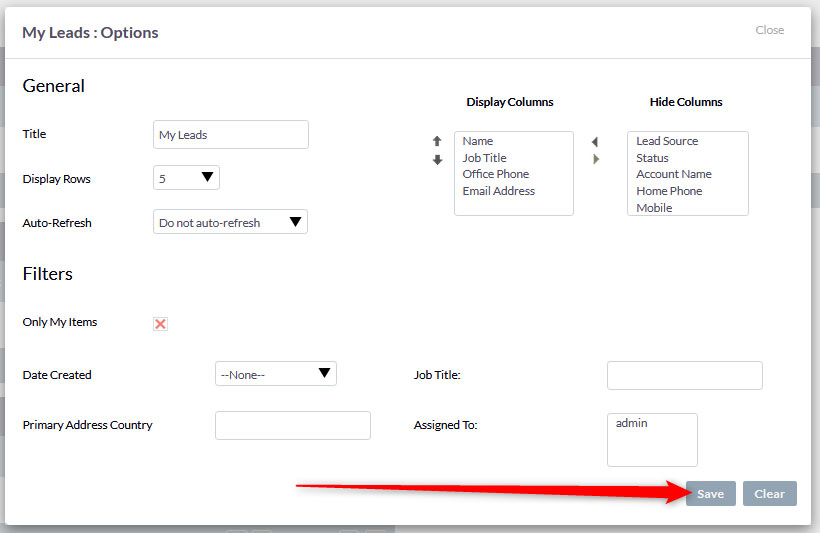
Dashlet settings box


Now, the next step is purely optional and aims at simulating a sidebar design effect in your SuiteCRM dashboard. Since the CMS doesn’t support a sidebar feature, the method we are about to show is by far the closest method to achieve this effect. While in the SuiteCRM dashboard, click and drag a dashlet and place it to the right side of the page. Do so with each dashlet you wish to appear on the right side of the screen. When you are finished, you will have a dual-column outlet:
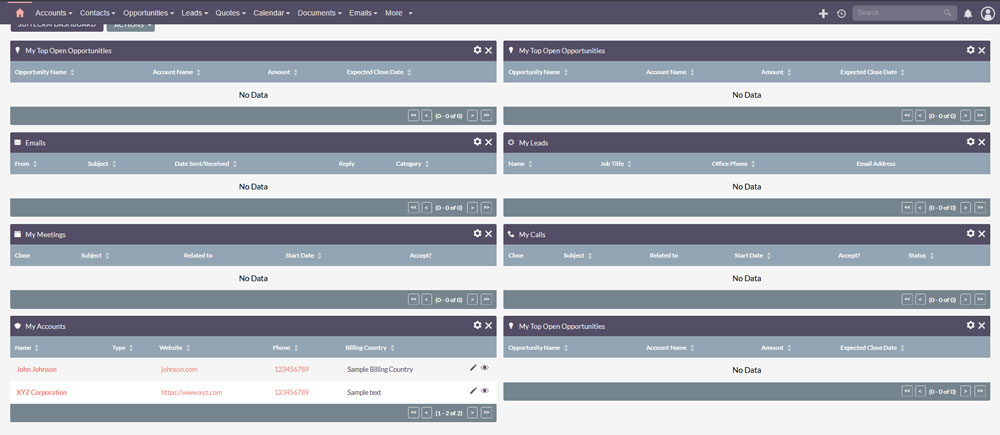

SuiteCRM dual column dashlets design


Was this post helpful?

i

Relevant tags:

Connect

Latest posts:

How to Upgrade My Hosting Services

Upgrading a hosting plan with AwardSpace is quite simple. Just follow the steps below. First, you need to log in to the AwardSpace hosting panel. Then, head to Services Upgrade, located in the Buy Services category within the hosting dashboard:   Then, select...

How to Purchase a Semi-Dedicated Hosting Plan

You can quickly and easily purchase a Semi-Dedicated hosting plan with AwardSpace. You only need a few clicks and a few minutes of your time. Here's what to do. First, log in to the AwardSpace hosting panel. Then, head to Semi-Dedicated Hosting in the Buy Services...

How to Purchase a VPS Hosting Plan

Purchasing а VPS hosting plan with AwardSpace is simple. You only need to follow a few steps, and you will have the setup made in no time. Here's how to proceed. First, log in to the AwardSpace hosting panel. Then, click on the Virtual Private Servers (VPS) icon...


Create a website for free!


Free forever

Our Support Team is Here to Help


If you need any questions answered, don't hesitate and contact us. Click the button below and follow the instructions. You can expect an answer within an hour.


Contact AwardSpace


iNewest knowledge base articles

How to Upgrade My Hosting Services

Upgrading a hosting plan with AwardSpace is quite simple. Just follow the steps below. First, you need to log in to the AwardSpace hosting panel. Then, head to Services Upgrade, located in the Buy Services category within the hosting dashboard:   Then, select...

How to Purchase a Semi-Dedicated Hosting Plan

You can quickly and easily purchase a Semi-Dedicated hosting plan with AwardSpace. You only need a few clicks and a few minutes of your time. Here's what to do. First, log in to the AwardSpace hosting panel. Then, head to Semi-Dedicated Hosting in the Buy Services...

How to Purchase a VPS Hosting Plan

Purchasing а VPS hosting plan with AwardSpace is simple. You only need to follow a few steps, and you will have the setup made in no time. Here's how to proceed. First, log in to the AwardSpace hosting panel. Then, click on the Virtual Private Servers (VPS) icon...

How to Check My Hosting Limits

To check your hosting limits, follow these steps: First, log in to the hosting control panel. Then, via the dashboard, head to Hosting Settings:   After that, click the Hosting Limits tab:   Then, you will access the information about your account's hosting...

Even more web tutorials

Check out our web hosting knowledge base and the WordPress tutorials to learn more, and be better prepared for your website creation and maintenance journey.