
Learning how to create a Joomla sitemap is important for improving your website’s SEO and visibility to search engines like Google, Bing, Yahoo, and others.
The Joomla sitemap is a simple file that helps search engines understand and index your website more effectively, and eventually list your website’s pages in more prominent search result positions.
However, to benefit from using a sitemap, you should use a Joomla extension. This is why, in this tutorial, we will guide you through the process of creating a sitemap for your Joomla website.
What is a Sitemap
A sitemap is a file that acts as a blueprint of your website that lists all its pages. The sitemap facilitates search engines to crawl and index your site more effectively.
Furthermore, the sitemap details the page hierarchy and structure, which is crucial for search engine optimization (SEO), helping your site rank better in search results.
What is an XML Sitemap
An XML sitemap specifically uses XML (Extensible Markup Language) to detail information about a website’s pages, images, and other contents. It includes URLs, last update dates, and change frequencies, making it ideal for search engine algorithms.
In short, XML sitemaps give more detailed information about your website to search engines. In this article, we will show you how to create an XML sitemap for your Joomla website.
Read also:
- How to Install Joomla
- How to Create a Web Page with Joomla
- How to Install Joomla Extensions
- How to Install Joomla Templates
- What are Joomla Modules
- What are Joomla Plugins
How to Create a Joomla Sitemap
In this tutorial, we will be using the OSMap extension, however, you can use any other Joomla extension of your choice. Keep in mind that the setup process is the same, regardless of the extension.
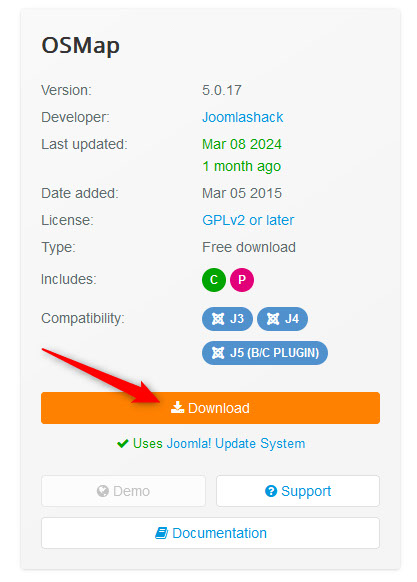
Step 1: Download OSMap on your computer device. To do so, visit the OSMap official page and select a package that suits your needs.
Once you select the OSMap version that suits your needs, click on the orange Download button on the right of the screen and wait until the downloading process is completed:
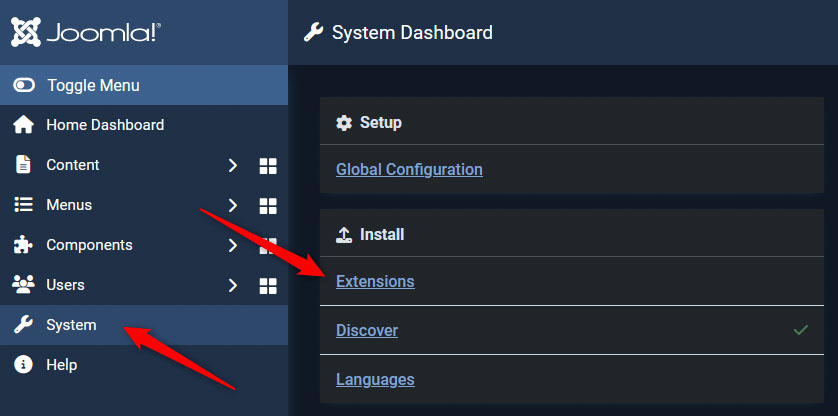
Step 2: Install the OSMap Extension on your Joomla website. To do so, log into your Joomla administration panel, and then navigate to System -> Extensions:
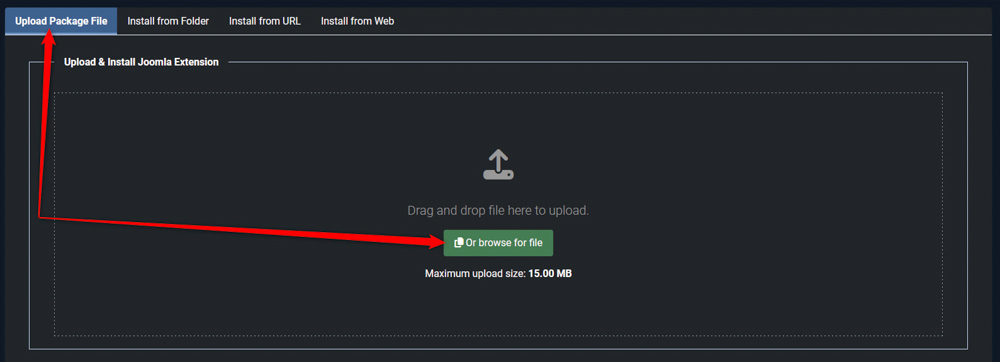
Then, via the Upload Package File tab, drag and drop the downloaded sitemap extension, or click the blue Browse for File button and select the files:
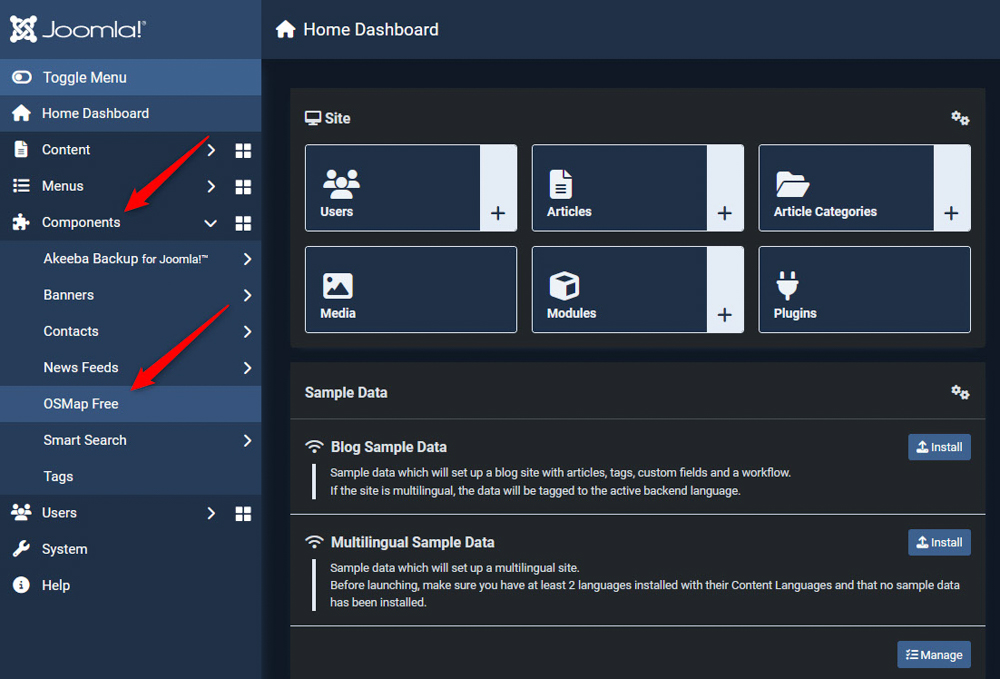
Step 3: View and manage your sitemaps via the Sitemap Manager. To do so, via the Joomla admin panel, go to Components -> OSMap:
In the Sitemap Manager, you’ll find links to different sitemap formats:

There are 3 types of sitemaps that the extension generates for your website:
- XML Sitemap: Ideal for search engines. You can submit this link to Google Search Console.
- HTML Sitemap: Visible to visitors, helping them navigate your site.
- Images Sitemap: Helps submit images to Google.
Step 4: Display an HTML Sitemap on Your Website Navigation
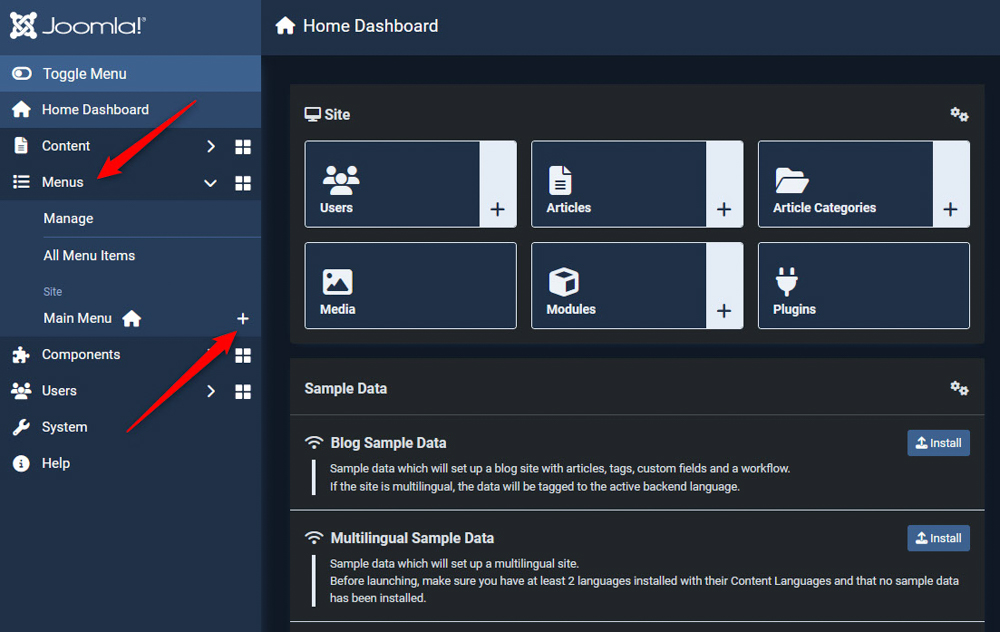
Go to Menus -> Main Menu -> Add Site Menu Item:
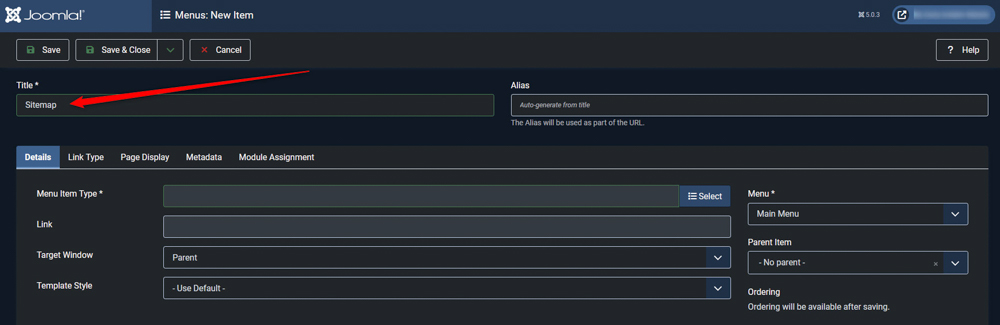
Select a name of the new item, for example, “Sitemap”:
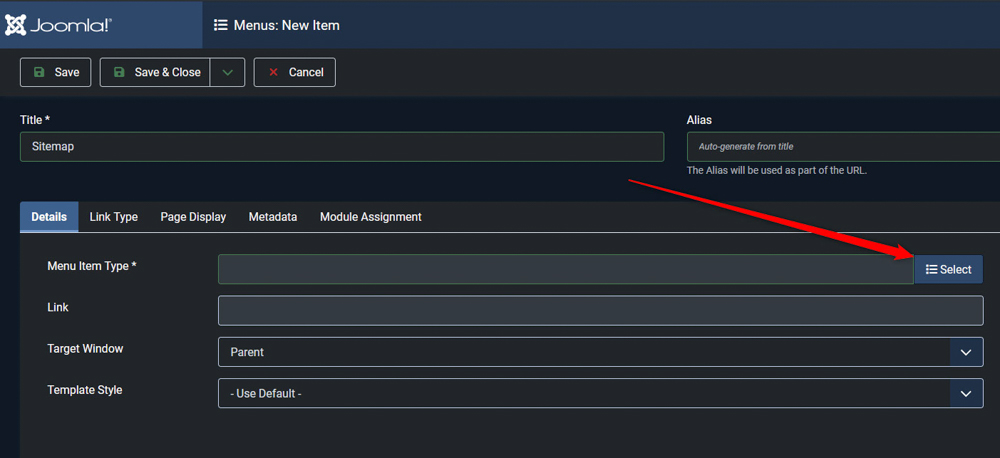
Then, click the blue Select button on the left of the Menu Item Type element:
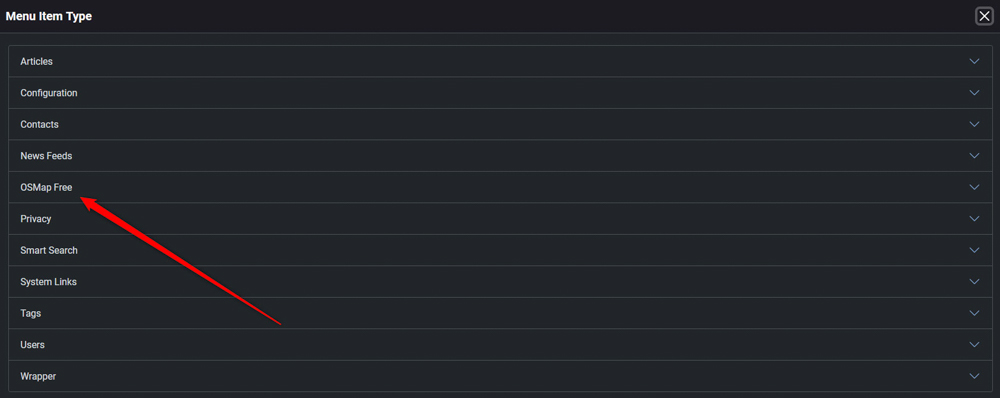
A new window will pop up. Once it does, find OSMap (or the name of the sitemap extension you installed):
Then, a drop-down menu with options will appear. From there select Sitemap -> XML Format:

Ensure it is published, then save and close. This menu item will link to your HTML sitemap, enhancing site navigation for users:
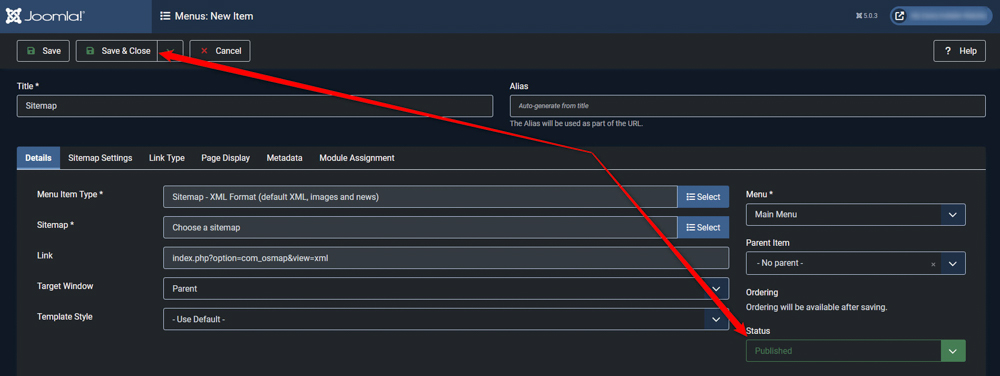
Now, every time a crawling bot enters your website, it can use the installed sitemap, so it gets to index and understand your website better.
Remember, this is important, as it would improve your Joomla website’s SERP rankings.
How to Create a Joomla Sitemap – Conclusion
Sitemaps can be generated using a variety of tools, including Joomla extensions. A sitemap is important for SEO as it helps search engines understand the structure and content of your website, allowing it to rank higher in search results.
In this article, we share how to install a sitemap on your Joomla website.
