
How to Back Up Your Zen Cart Project

Home » Knowledge Base » Design Tools » Zen Cart » How to Back Up Your Zen Cart Project

Regular Zen Cart backups can help you avoid a full project disaster and can save you tons of time. This article shares how to back up your Zen Cart project quickly and effectively.


Why is Backup Important

Backing up your Zen Cart store is important for a few reasons:

  • Backups protect you from data loss, including hacking, server issues, and accidental deletion.
  • Backups preserve your settings and preferences, allowing you to revert to a convenient setup if a test doesn’t go as planned.
  • Backups provide peace of mind, since you know your data, configuration, and everything else are safe.

In the following steps, we share how to back up your Zen Cart Project.


How to Back Up Your Zen Cart Project

The backup process consists of a few easy-to-follow steps. The core of this process is to zip and download your Zen Cart website files and any database files related to your project.


Step 1: Log in To Your Hosting Panel

The first step of the process is to access your Zen Cart files via the AwardSpace hosting panel. This is the place from which you manage all your stored web files and all hosting settings.

If you don’t know how to log in to your hosting panel, then check out our simple guide:

How to Log Into the Hosting Control Panel?


Step 2: Head to the File Manager

Once logged in to the AwardSpace hosting panel, head to the File Manager. To do so, click the File Manager icon within the Website Manager box:
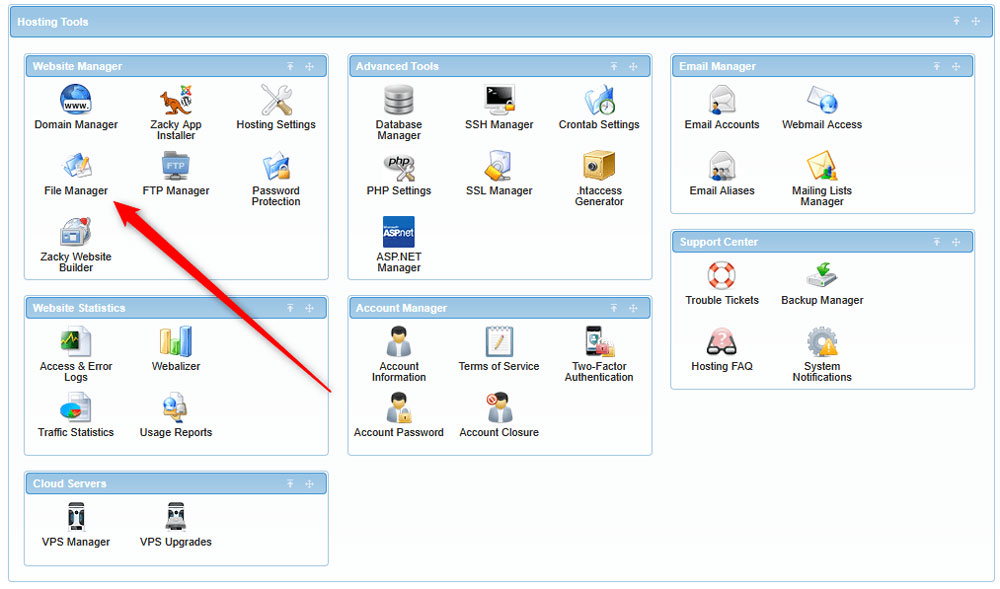
Access the AwardSpace file manager to back up your Zen Cart project


Then, open your Zen Cart installation directory. To do so, click on the folder with your Zen Cart project name via the left section of the page:
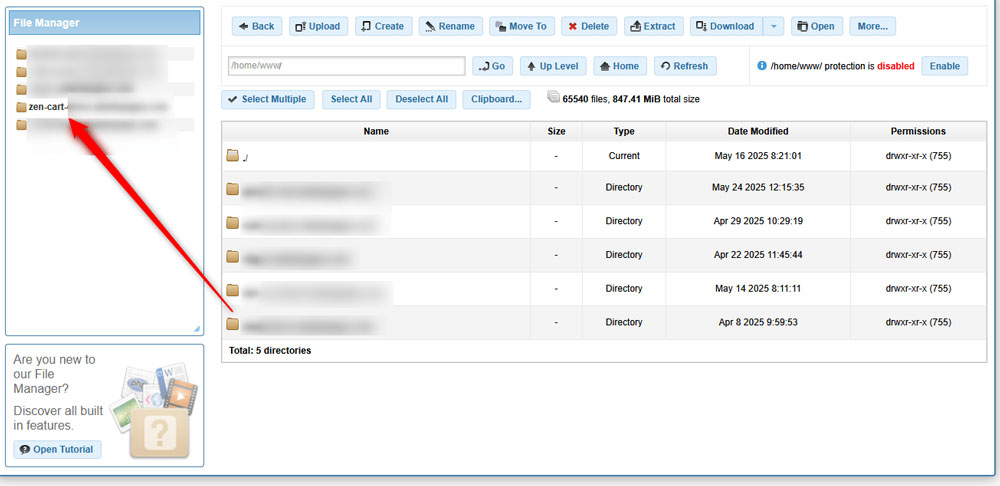
Access the Zen Cart root folder

Step 3: Download your Zen Cart Project Files

To back up your Zen Cart project, you need to zip and download your website files to a safe place. Let’s see how this is done.

First, while in your Zen Cart directory, click on the Select All button at the top of the page:
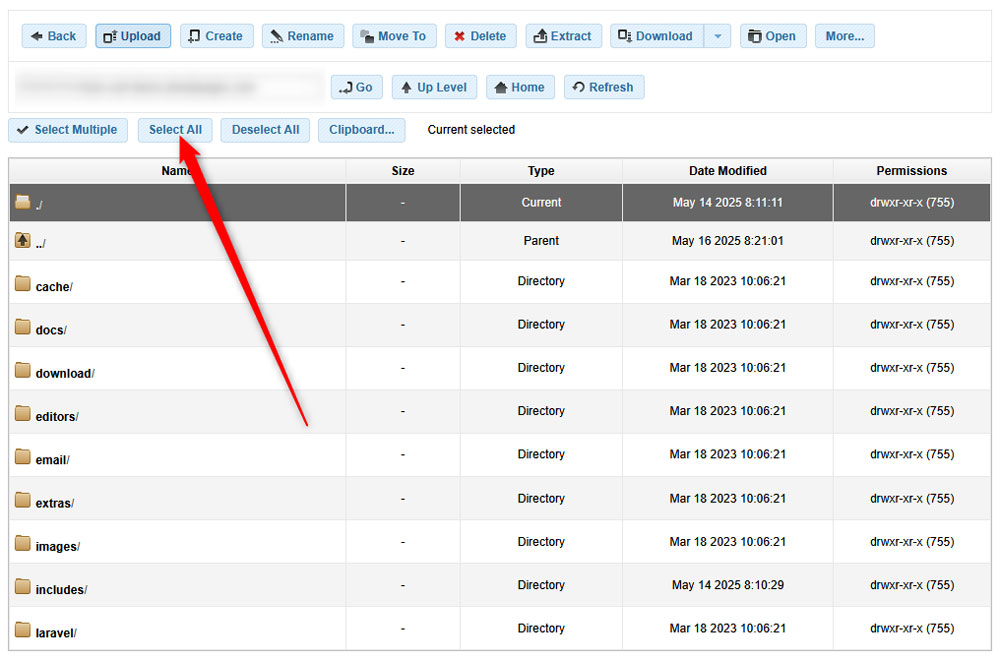
Click the Select All button to choose all Zen Cart files


This will mark all the Zen Cart core files.

Now, we need to zip and download these files. Luckily, AwardSpace offers a feature that does the two simultaneously.

Head to the Download button, located at the top of the navigation menu. Click the Down Arrow so you see various download options.  From there, select Download Zip:
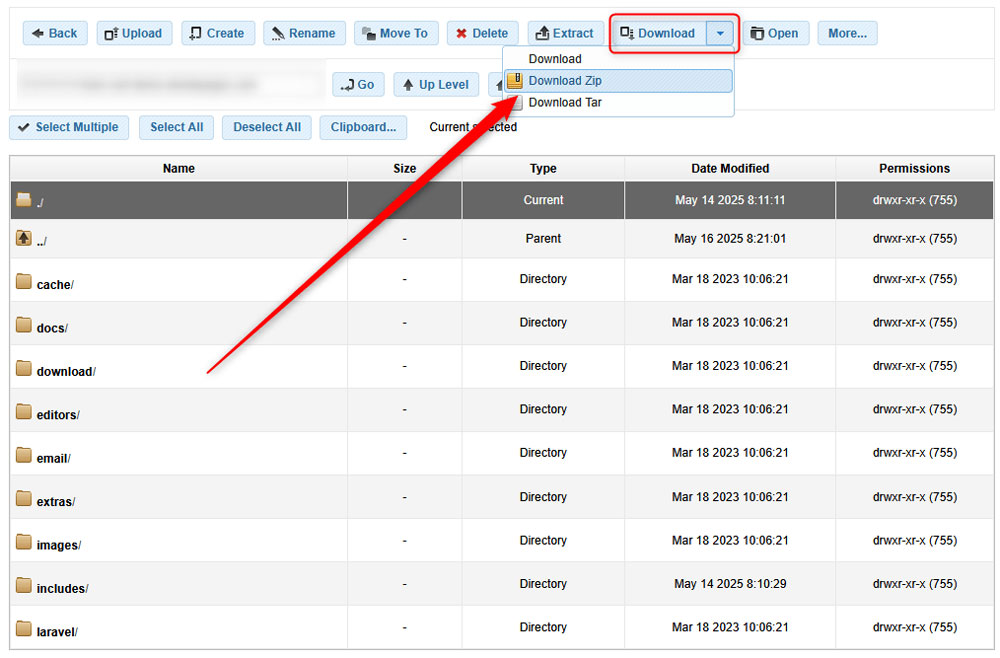
Download selected files as a ZIP file


Now, the downloading process should start. Once it is finished, you will have a ZIP file on your device with all the important Zen Cart files.

Store and protect this ZIP file, so you can revert to it in case of emergencies for your website.


Step 4: Back Up Database Files

Now that your website is backed up, it is time to do the same with the database files related to your Zen Cart project. These are the files that contain important information such as login credentials, setup preferences, and others.

The process is very simple:

First, via the AwardSpace hosting panel, head to Database Manager via the Advanced Tools section:
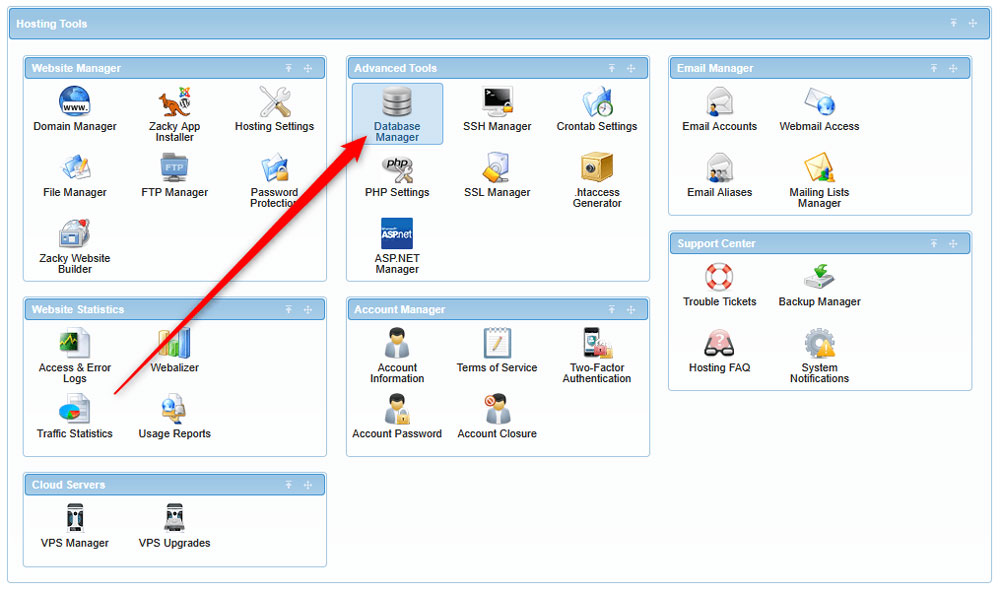
Access the Database Manager in AwardSpace hosting panel


Then, via the All Databases tab, search for the database related to your Zen Cart project. Once you locate it, click on the blue + sign to the left of its row:
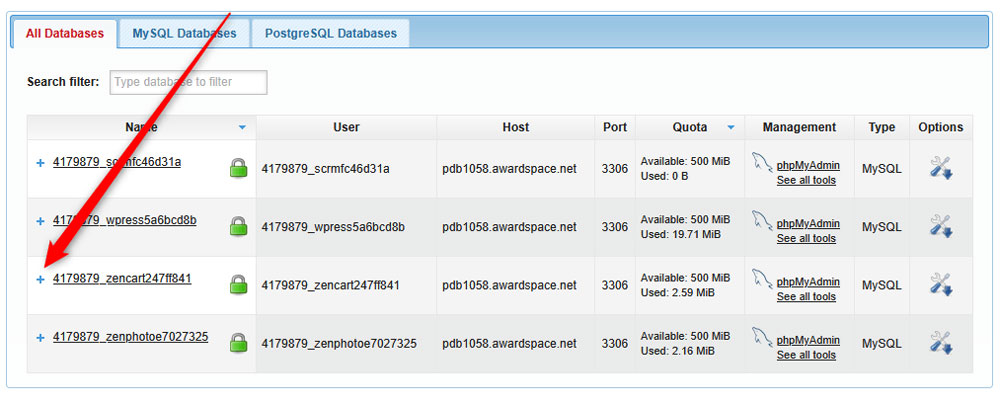
List of your Database files


Once you click the + icon, a new menu will appear. Once you see it, click on Management:
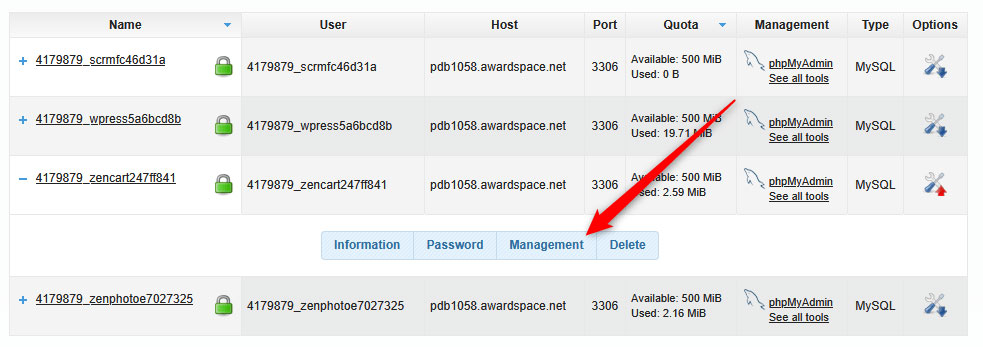
Select Management, so to download your Zen Cart database files


Yet, a new menu with options will appear. From there, via the Database SQL Export Download section, click the blue Download in SQL Format button:
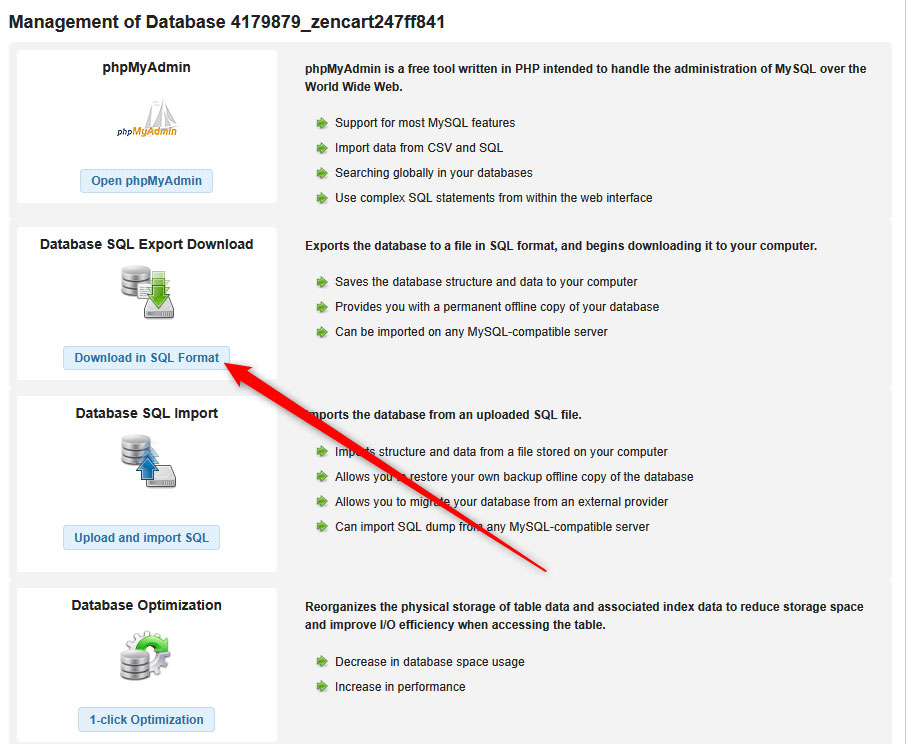
Download the Database file to your device


Once you click the button, a download process should start. Once it finishes, save the downloaded file, as it contains all the important database setup and information for your Zen Cart project.

Now, you have managed to back up your Zen Cart website.


Conclusion

Learning how to back up your Zen Cart project is important for maintaining a secure and reliable online store. The backup process is very simple, and you can use it regularly to protect your online project.

Was this post helpful?

i

Relevant tags:

Connect

Latest posts:

How to Check My Auto Renewals

To check your AwardSpace hosting plan auto-renewals, first log in to the admin dashboard. Then, head to Wallet, within the Orders & Invoices section:   After that, click the Auto Renewals tab, where you can check any relevant information about your hosting...

How to Check My Payment Requests

To check your payment requests, first log in to the AwardSpace hosting panel. Then, head to Wallet within the Orders & Invoices category:   Then, click the Payment Requests tab. There, you can browse all the information you need about your...

How to Check My Invoices

To check your invoices in AwardSpace, first log in to the hosting panel. From there, head to Invoices within the Orders & Invoices category:   From this place, you can browse order references, payment orders, payment types, order dates, and various...

How to Check My Wallet Flow

To check your wallet flow, first log in to the AwardSpace hosting panel. Then, click on Wallet within Payments & Invoices:   After that, click the Wallet Flow tab. This is where you can see details about your wallet flaw:

How to Check My Incomplete Orders

To check your incomplete orders, first log in to the AwardSpace hosting panel. Then, head to Incomplete Orders within Orders & Invoices:   Then, you can check the list within the Incomplete Orders tab:  


Create a website for free!


Free forever

Our Support Team is Here to Help


If you need any questions answered, don't hesitate and contact us. Click the button below and follow the instructions. You can expect an answer within an hour.


Contact AwardSpace


iNewest knowledge base articles

How to Check My Auto Renewals

To check your AwardSpace hosting plan auto-renewals, first log in to the admin dashboard. Then, head to Wallet, within the Orders & Invoices section:   After that, click the Auto Renewals tab, where you can check any relevant information about your hosting...

How to Check My Payment Requests

To check your payment requests, first log in to the AwardSpace hosting panel. Then, head to Wallet within the Orders & Invoices category:   Then, click the Payment Requests tab. There, you can browse all the information you need about your...

How to Check My Invoices

To check your invoices in AwardSpace, first log in to the hosting panel. From there, head to Invoices within the Orders & Invoices category:   From this place, you can browse order references, payment orders, payment types, order dates, and various...

How to Check My Wallet Flow

To check your wallet flow, first log in to the AwardSpace hosting panel. Then, click on Wallet within Payments & Invoices:   After that, click the Wallet Flow tab. This is where you can see details about your wallet flaw:

How to Check My Incomplete Orders

To check your incomplete orders, first log in to the AwardSpace hosting panel. Then, head to Incomplete Orders within Orders & Invoices:   Then, you can check the list within the Incomplete Orders tab:  

How to Check My Canceled Orders

To check your canceled orders with AwardSpace, first, log in to the hosting panel. Then, head to Caneled Orders within the Orders & Invoices category:   Then, within the Canceled Orders tab, you can browse your canceled orders with AwardSpace:

Even more web tutorials

Check out our web hosting knowledge base and the WordPress tutorials to learn more, and be better prepared for your website creation and maintenance journey.