
How to Upgrade My Hosting Services

Home » Knowledge Base » Control Panel » Orders & Invoices » How to Upgrade My Hosting Services

Upgrading a hosting plan with AwardSpace is quite simple. Just follow the steps below.

First, you need to log in to the AwardSpace hosting panel.

Then, head to Services Upgrade, located in the Buy Services category within the hosting dashboard:
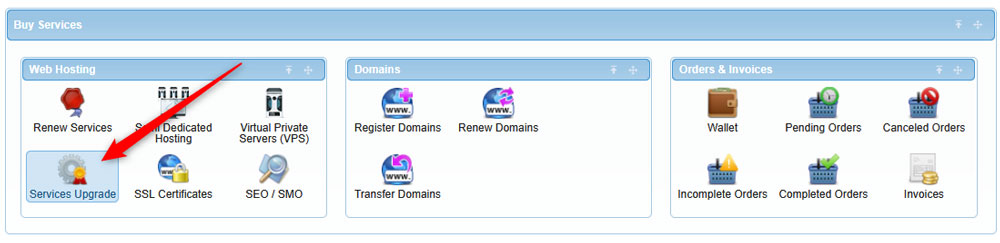
Head to the Services Upgrade option in AwardSpace hosting panel


Then, select which hosting service you wish to upgrade. If you are not sure about which new upgrade is suitable for your needs, you can simply add a tick to the Compare box of your current plan and any other plan you wish to upgrade to:
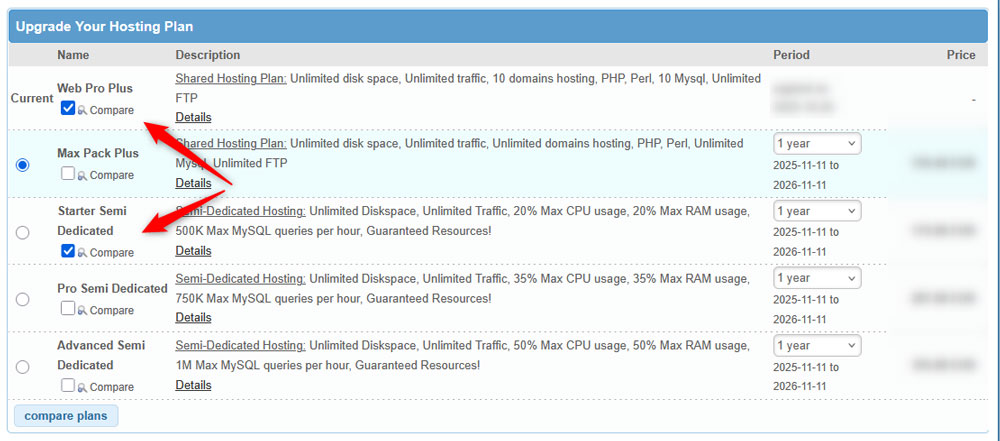
Compare the hosting services, so you choose the most suitable one for your project


Then click on the blue Compare plans button:
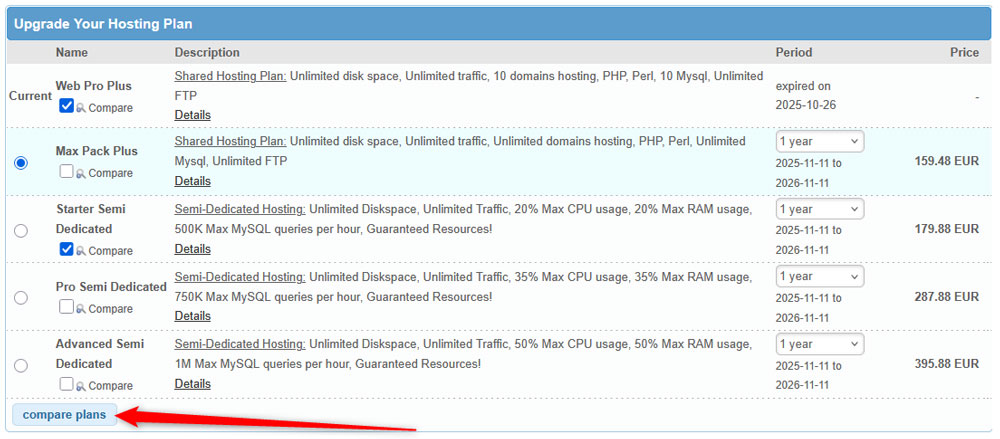
Click the Compare button to check how the hosting services differentiate from each other


You will be directed to a table with detailed characteristics of both plans – your current one and the one you would upgrade to:
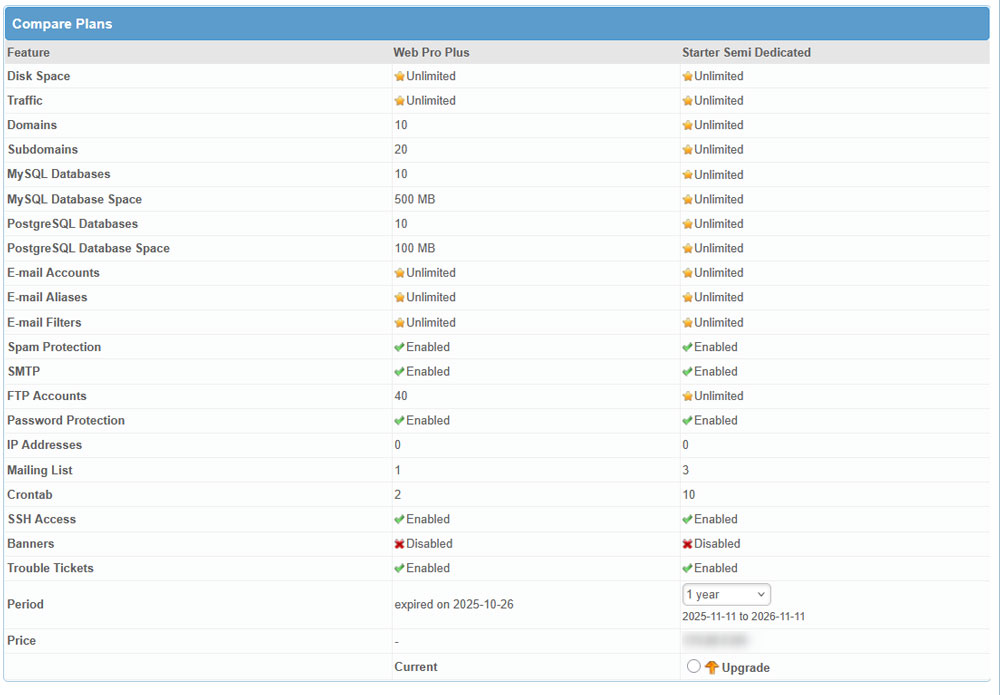
Table of hosting plan comparison


You can compare your current plan with all available upgrades.


Once you select a plan you wish to upgrade to, select it via the circle toggle and click on the blue Continue button:

Select a plan to upgrade to and click on Continue to finish the process


A new page should open. There, you can see what is currently in your shopping cart, and you also need to add Contact Details—remember that the fields marked with a red star are mandatory. Once you are done filling in the details, click on Continue:
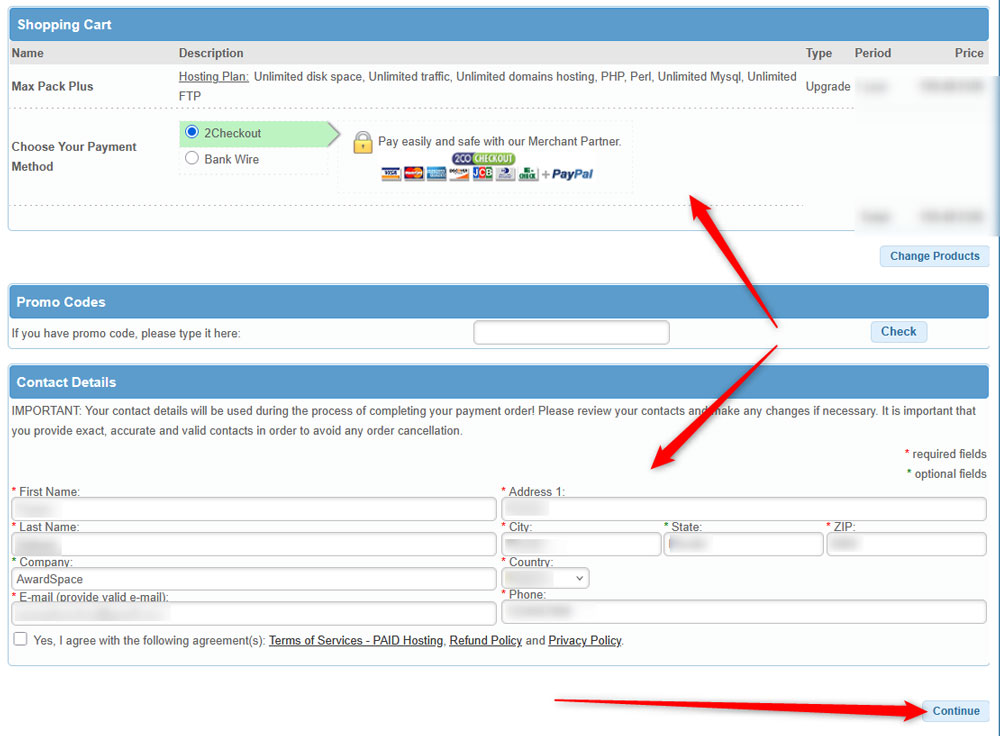
Add account details and review the order


The next page that loads is an overview of your current order (in this case, the account details, order details, and price). Have a thorough look at these details, and if everything seems fine, click on the blue Pay with 2Checkout! button:
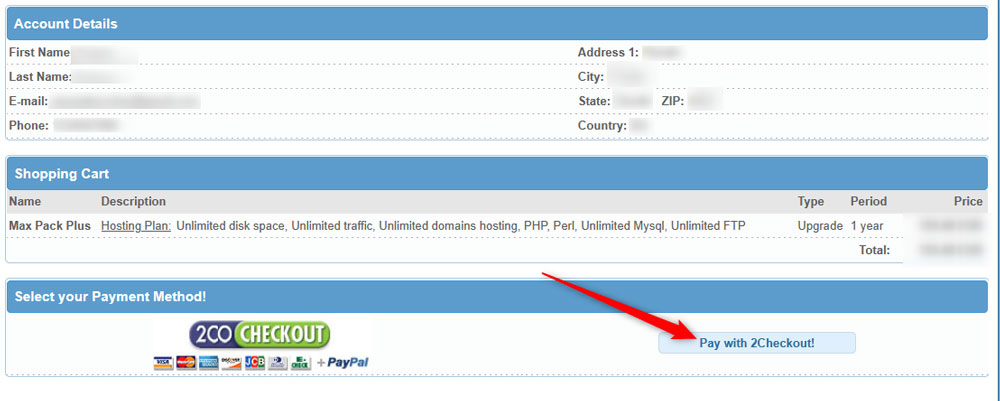
Proceed to upgrade payment


Then you will be redirected to the order placement page. Add your details there, including card details, and click on the green Place order button:
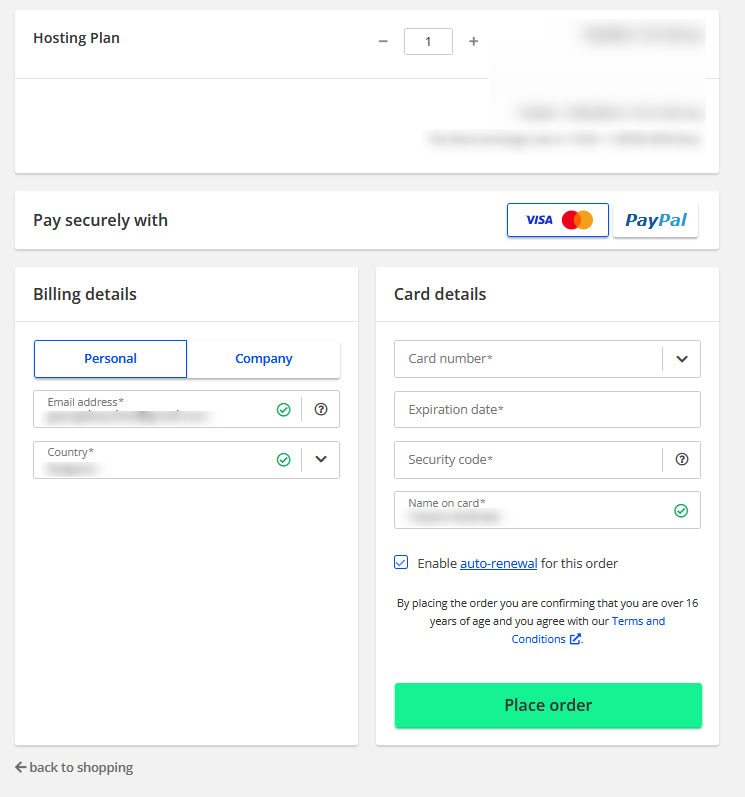
Place your hosting plan upgrade order


After you place your order, you will receive an email with important information.

N.B! Save and read this email thoroughly, as it contains important information about your purchase.

Now you have managed to upgrade your hosting service.



Was this post helpful?

i

Relevant tags:

Connect

Latest posts:

How to Check My Auto Renewals

To check your AwardSpace hosting plan auto-renewals, first log in to the admin dashboard. Then, head to Wallet, within the Orders & Invoices section:   After that, click the Auto Renewals tab, where you can check any relevant information about your hosting...

How to Check My Payment Requests

To check your payment requests, first log in to the AwardSpace hosting panel. Then, head to Wallet within the Orders & Invoices category:   Then, click the Payment Requests tab. There, you can browse all the information you need about your...

How to Check My Invoices

To check your invoices in AwardSpace, first log in to the hosting panel. From there, head to Invoices within the Orders & Invoices category:   From this place, you can browse order references, payment orders, payment types, order dates, and various...

How to Check My Wallet Flow

To check your wallet flow, first log in to the AwardSpace hosting panel. Then, click on Wallet within Payments & Invoices:   After that, click the Wallet Flow tab. This is where you can see details about your wallet flaw:

How to Check My Incomplete Orders

To check your incomplete orders, first log in to the AwardSpace hosting panel. Then, head to Incomplete Orders within Orders & Invoices:   Then, you can check the list within the Incomplete Orders tab:  


Create a website for free!


Free forever

Our Support Team is Here to Help


If you need any questions answered, don't hesitate and contact us. Click the button below and follow the instructions. You can expect an answer within an hour.


Contact AwardSpace


iNewest knowledge base articles

How to Check My Auto Renewals

To check your AwardSpace hosting plan auto-renewals, first log in to the admin dashboard. Then, head to Wallet, within the Orders & Invoices section:   After that, click the Auto Renewals tab, where you can check any relevant information about your hosting...

How to Check My Payment Requests

To check your payment requests, first log in to the AwardSpace hosting panel. Then, head to Wallet within the Orders & Invoices category:   Then, click the Payment Requests tab. There, you can browse all the information you need about your...

How to Check My Invoices

To check your invoices in AwardSpace, first log in to the hosting panel. From there, head to Invoices within the Orders & Invoices category:   From this place, you can browse order references, payment orders, payment types, order dates, and various...

How to Check My Wallet Flow

To check your wallet flow, first log in to the AwardSpace hosting panel. Then, click on Wallet within Payments & Invoices:   After that, click the Wallet Flow tab. This is where you can see details about your wallet flaw:

How to Check My Incomplete Orders

To check your incomplete orders, first log in to the AwardSpace hosting panel. Then, head to Incomplete Orders within Orders & Invoices:   Then, you can check the list within the Incomplete Orders tab:  

How to Check My Canceled Orders

To check your canceled orders with AwardSpace, first, log in to the hosting panel. Then, head to Caneled Orders within the Orders & Invoices category:   Then, within the Canceled Orders tab, you can browse your canceled orders with AwardSpace:

Even more web tutorials

Check out our web hosting knowledge base and the WordPress tutorials to learn more, and be better prepared for your website creation and maintenance journey.