
What Is Website Password Protection?

While the goal of most websites is to share information and connect with as many visitors as possible, there are occasions in which you may wish to limit access to your site to a select group of people. Maybe you are still building your website and it is not yet ready to be viewed by everyone or maybe your site contains information that should not be publicly accessible. Whatever the case may be, adding password protection to your pages is a useful feature that you have available at your disposal.
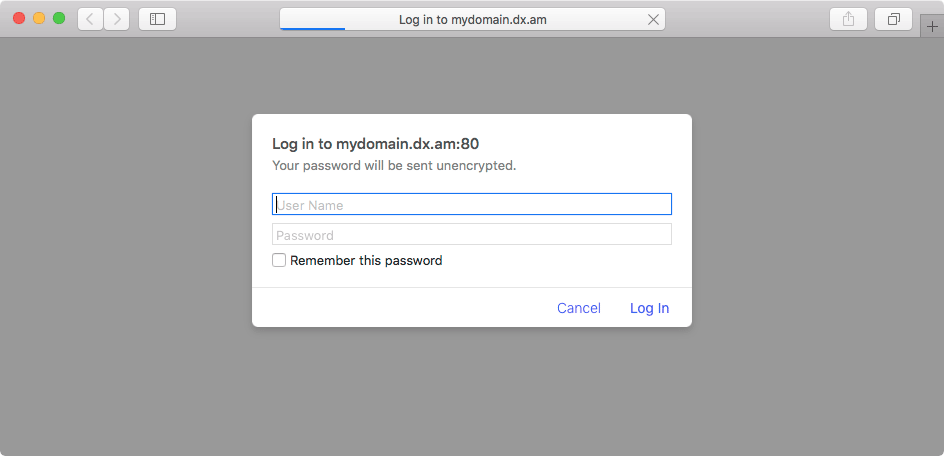
A domain with active website password protection.


What is Website Password Protection?

When you enable website password protection, you will be asked for a username and a password on every visit to your site. If you are unable to provide valid login credentials, an error page will be displayed and your site content will not be shown.


How does Website Password Protection Work?

At its core, website password protection restricts access to a specific directory in your hosting space. You get to choose this directory as well as the username and password which are used to gain access. The password protection can be applied to any directory – from a subfolder to your main domain directory.

The feature is managed through a dedicated Password Protection section in the Control Panel. If you have trouble setting up password protection for your site, you can check our in-depth guide on how to add website password protection.


Does Password Protection Cover Sub-Directories As Well?

Yes, the website password protection covers all sub-directories which are located in the target protected directory. As such, if you secure the root folder for your domain name, all of your site contents will become private. If a visitor tries to gain access without knowing the correct username and password, they would be presented with the following page:


Can I Allow Additional Users to Access My Protected Directory?

Yes, once you have set up password protection for your website, you can create as many additional users as you need. Each new user will have the ability to both read and create files in the protected directory.


Does Website Password Protection Work over FTP?

No, the website password protection feature is designed to protect from unauthorized HTTP access only. In other words, it is effective when someone tries to visit your site in their web browser. Website password protection is not able to secure a directory when you are viewing it in our File Manager, an FTP client, or via SSH.


Can I Use Website Password Protection on the Free Hosting Plan?

At this time, website password protection is a feature only available on our paid hosting plans. If you are using our Free Hosting Plan, you may consider upgrading to the paid hosting platform.

Was this post helpful?

i

Relevant tags:

Connect

Latest posts:

How to Fix 308 Permanent Redirect

308 Permanent Redirect is an HTTPS status code indicating that the requested resource has been permanently moved to another location. Similar to 301 Moved Permanently, 308 informs the user of the movement of a given online resource, and unlike the 301 redirect, 308...

How to Fix 301 Error Moved Permanently

The 301 Moved Permanently is an HTTP status code that indicates a permanent relocation of an online resource from a given URL to a new one. More technically, the moved resource has been moved to the new URL specified in the Location header. The HTTP 301 status code is...

How to Fix 307 Temporary Redirect

307 Temporary Redirect is a response HTTP status code that indicates the requested resource has been moved to a different URL for a limited period of time. Unlike a 301 permanent redirect, the 307 Temporary Redirect message indicates that the change is temporary and...

How to Access Crontab Settings

To access the crontab settings, first, you need to log in to your AwardSpace hosting panel. After you have logged in, head to Crontab Settings, located within the Advanced Tools category:   After you click the Crontab Settings icon, a new page should load. Once...

How to Check My Auto Renewals

To check your AwardSpace hosting plan auto-renewals, first log in to the admin dashboard. Then, head to Wallet, within the Orders & Invoices section:   After that, click the Auto Renewals tab, where you can check any relevant information about your hosting...


Create a website for free!


Free forever

Our Support Team is Here to Help


If you need any questions answered, don't hesitate and contact us. Click the button below and follow the instructions. You can expect an answer within an hour.


Contact AwardSpace


iNewest knowledge base articles

How to Fix 308 Permanent Redirect

308 Permanent Redirect is an HTTPS status code indicating that the requested resource has been permanently moved to another location. Similar to 301 Moved Permanently, 308 informs the user of the movement of a given online resource, and unlike the 301 redirect, 308...

How to Fix 301 Error Moved Permanently

The 301 Moved Permanently is an HTTP status code that indicates a permanent relocation of an online resource from a given URL to a new one. More technically, the moved resource has been moved to the new URL specified in the Location header. The HTTP 301 status code is...

How to Fix 307 Temporary Redirect

307 Temporary Redirect is a response HTTP status code that indicates the requested resource has been moved to a different URL for a limited period of time. Unlike a 301 permanent redirect, the 307 Temporary Redirect message indicates that the change is temporary and...

How to Access Crontab Settings

To access the crontab settings, first, you need to log in to your AwardSpace hosting panel. After you have logged in, head to Crontab Settings, located within the Advanced Tools category:   After you click the Crontab Settings icon, a new page should load. Once...

How to Check My Auto Renewals

To check your AwardSpace hosting plan auto-renewals, first log in to the admin dashboard. Then, head to Wallet, within the Orders & Invoices section:   After that, click the Auto Renewals tab, where you can check any relevant information about your hosting...

How to Check My Payment Requests

To check your payment requests, first log in to the AwardSpace hosting panel. Then, head to Wallet within the Orders & Invoices category:   Then, click the Payment Requests tab. There, you can browse all the information you need about your...

Even more web tutorials

Check out our web hosting knowledge base and the WordPress tutorials to learn more, and be better prepared for your website creation and maintenance journey.