
How to Add YouTube Subscribe Button in WordPress

Home » WordPress Tutorials » Maintenance » How to Add YouTube Subscribe Button in WordPress

Last week we’ve covered how to embed a Facebook video in WordPress. But even if Facebook’s video platform is on the rise, it’s not smart to forget about the giant among the video platforms. Yes, we talk about YouTube. A while ago, we’ve covered how to embed a YouTube video in WordPress, but if you have a YouTube channel to go with your website (or the other way around), you know how important it is to promote your channel everywhere you can. The most logical thing, of course, is to use your website to promote the channel and vice versa. Let’s find out how to add a YouTube Subscribe button in WordPress.


How to add YouTube Subscribe Button in WordPress

As most of us know, Google owns YouTube. And with Google being Google, they’ve done their best to make it easier for people to use their services. What does that mean for someone who wants to add the youtube subscribe button directly on their website?

Well, you can take advantage of a simple and slick tool, developed by Google. To do so, go to the YouTube Subscribe Button page.

Here is what you can expect to see, once you open the page:
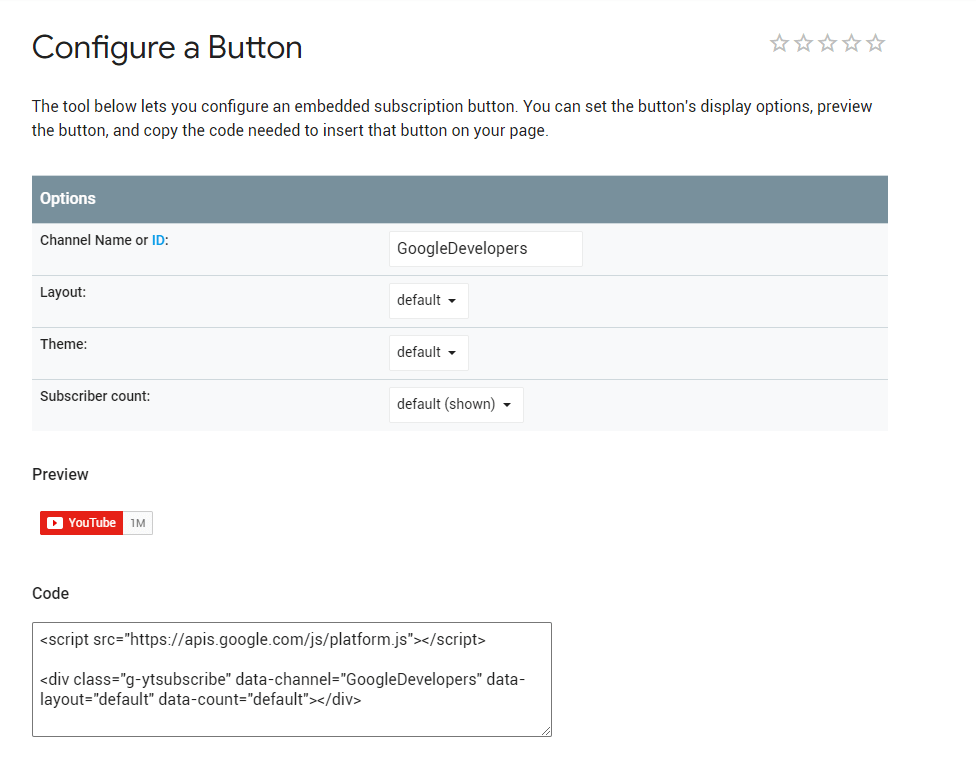


The layout is pretty straightforward. You have exactly four options to tune up.

  • Channel Name or ID
  • Layout
  • Theme
  • Subscriber Count

In the Channel Name or ID field, you should enter either the exact name of your YouTube Channel or your ID, which is the same as the last part of the URL of your channel’s main page.

https://www.youtube.com/channel/UCvK9cYFtqdMk8wNIktslvmA – this is AwardSpace’s YouTube channel. As you can see, after /channel/ there is a long series of letters and numbers. This is our channel’s ID.

In the process of adding a YouTube Subscribe button to WordPress, the next step is Layout. It will change whether a logo will be presented, as well as the length of well… the layout.

When speaking of themes of the YouTube Subscribe button, Google has presented us with two options – we can use either the light theme or the dark one.

Next, you have to choose whether you want to show or hide the number of people that have already subscribed to your YouTube Channel.

Once you are ready with the button customization, the window with the code below will be updated so that you can just copy and paste the code whenever you want it to be on your website.
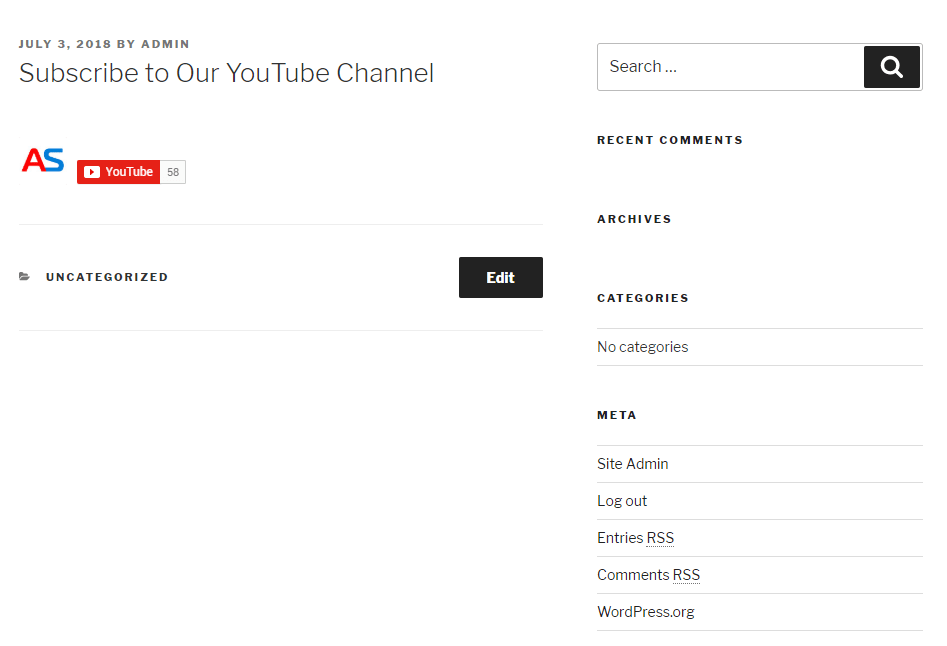


Tip: If you want the button to show on the top of the sidebar on every page, you could add a Text Widget, and locate it where you want it to show up.

We hope that you find this article useful. If you want, you can go back to the main page of our WordPress Tutorial to learn more about how to create a WordPress website.

Or check out AwardSpace’s Blog.

Was this post helpful?

i

Relevant tags:

Connect

Latest posts:

How to Fix 308 Permanent Redirect

308 Permanent Redirect is an HTTPS status code indicating that the requested resource has been permanently moved to another location. Similar to 301 Moved Permanently, 308 informs the user of the movement of a given online resource, and unlike the 301 redirect, 308...

How to Fix 301 Error Moved Permanently

The 301 Moved Permanently is an HTTP status code that indicates a permanent relocation of an online resource from a given URL to a new one. More technically, the moved resource has been moved to the new URL specified in the Location header. The HTTP 301 status code is...

How to Fix 307 Temporary Redirect

307 Temporary Redirect is a response HTTP status code that indicates the requested resource has been moved to a different URL for a limited period of time. Unlike a 301 permanent redirect, the 307 Temporary Redirect message indicates that the change is temporary and...

How to Access Crontab Settings

To access the crontab settings, first, you need to log in to your AwardSpace hosting panel. After you have logged in, head to Crontab Settings, located within the Advanced Tools category:   After you click the Crontab Settings icon, a new page should load. Once...

How to Check My Auto Renewals

To check your AwardSpace hosting plan auto-renewals, first log in to the admin dashboard. Then, head to Wallet, within the Orders & Invoices section:   After that, click the Auto Renewals tab, where you can check any relevant information about your hosting...


Create a website for free!


Free forever

Our Support Team is Here to Help


If you need any questions answered, don't hesitate and contact us. Click the button below and follow the instructions. You can expect an answer within an hour.


Contact AwardSpace


iNewest knowledge base articles

How to Fix 308 Permanent Redirect

308 Permanent Redirect is an HTTPS status code indicating that the requested resource has been permanently moved to another location. Similar to 301 Moved Permanently, 308 informs the user of the movement of a given online resource, and unlike the 301 redirect, 308...

How to Fix 301 Error Moved Permanently

The 301 Moved Permanently is an HTTP status code that indicates a permanent relocation of an online resource from a given URL to a new one. More technically, the moved resource has been moved to the new URL specified in the Location header. The HTTP 301 status code is...

How to Fix 307 Temporary Redirect

307 Temporary Redirect is a response HTTP status code that indicates the requested resource has been moved to a different URL for a limited period of time. Unlike a 301 permanent redirect, the 307 Temporary Redirect message indicates that the change is temporary and...

How to Access Crontab Settings

To access the crontab settings, first, you need to log in to your AwardSpace hosting panel. After you have logged in, head to Crontab Settings, located within the Advanced Tools category:   After you click the Crontab Settings icon, a new page should load. Once...

How to Check My Auto Renewals

To check your AwardSpace hosting plan auto-renewals, first log in to the admin dashboard. Then, head to Wallet, within the Orders & Invoices section:   After that, click the Auto Renewals tab, where you can check any relevant information about your hosting...

How to Check My Payment Requests

To check your payment requests, first log in to the AwardSpace hosting panel. Then, head to Wallet within the Orders & Invoices category:   Then, click the Payment Requests tab. There, you can browse all the information you need about your...

Even more web tutorials

Check out our web hosting knowledge base and the WordPress tutorials to learn more, and be better prepared for your website creation and maintenance journey.