
Schedule Post in WordPress

Home » Knowledge Base » Design Tools » WordPress » Schedule Post in WordPress

Imagine you’ve crafted an important article a few days back, but it needs to be released at a very specific time—a time when you’re certain you won’t be available to manually publish it online. While it’s feasible to request a friend or loved one to handle the publication, this is a solution that, at best, offers a temporary fix. After a time or two, they might start to find it bothersome or coincidentally be just as preoccupied during the critical period.

So, what’s the solution? WordPress offers the perfect solution. Scheduling posts.

Scheduling posts is a powerful feature that helps you manage your content strategy effectively, ensuring your site remains active and engaging for your audience, even when you’re not available to publish content manually.

While you’re in the process of creating or editing your article on the WordPress Post editor, a.k.a. Gutenberg direct your attention to the right-hand side of the screen. Here, amidst a plethora of options that typically extend well beyond your immediate view, you’ll find several settings.

These settings, although they can be customized, appear in the following order:

  • Publish
  • Format
  • Categories
  • Tags
  • Featured Image

To schedule your posts within WordPress, the ‘Publish‘ section is where you’ll want to concentrate your efforts.
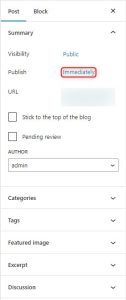
Right next to the Publish label, you can see the time of publishing. In the image above (and by default) it says “Immediately“. The text “immediately” is a button, and by clicking on it, you will trigger a calendar to show up.
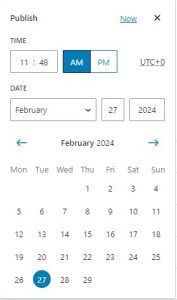
Select the desired date and close the calendar.

The button on top that previously had the label “Publish” should now be changed to “Schedule…”.

Subsequently, your post is scheduled to be automatically released at the chosen date and time.

If you need more in-depth directions, check our previously published article on How to Schedule Post in WordPress

If you feel like you are ready to go further in the CMS, feel free to browse our WordPress Tutorials section.

Was this post helpful?

i

Relevant tags:

Connect

Latest posts:

How to Fix 308 Permanent Redirect

308 Permanent Redirect is an HTTPS status code indicating that the requested resource has been permanently moved to another location. Similar to 301 Moved Permanently, 308 informs the user of the movement of a given online resource, and unlike the 301 redirect, 308...

How to Fix 301 Error Moved Permanently

The 301 Moved Permanently is an HTTP status code that indicates a permanent relocation of an online resource from a given URL to a new one. More technically, the moved resource has been moved to the new URL specified in the Location header. The HTTP 301 status code is...

How to Fix 307 Temporary Redirect

307 Temporary Redirect is a response HTTP status code that indicates the requested resource has been moved to a different URL for a limited period of time. Unlike a 301 permanent redirect, the 307 Temporary Redirect message indicates that the change is temporary and...

How to Access Crontab Settings

To access the crontab settings, first, you need to log in to your AwardSpace hosting panel. After you have logged in, head to Crontab Settings, located within the Advanced Tools category:   After you click the Crontab Settings icon, a new page should load. Once...

How to Check My Auto Renewals

To check your AwardSpace hosting plan auto-renewals, first log in to the admin dashboard. Then, head to Wallet, within the Orders & Invoices section:   After that, click the Auto Renewals tab, where you can check any relevant information about your hosting...


Create a website for free!


Free forever

Our Support Team is Here to Help


If you need any questions answered, don't hesitate and contact us. Click the button below and follow the instructions. You can expect an answer within an hour.


Contact AwardSpace


iNewest knowledge base articles

How to Fix 308 Permanent Redirect

308 Permanent Redirect is an HTTPS status code indicating that the requested resource has been permanently moved to another location. Similar to 301 Moved Permanently, 308 informs the user of the movement of a given online resource, and unlike the 301 redirect, 308...

How to Fix 301 Error Moved Permanently

The 301 Moved Permanently is an HTTP status code that indicates a permanent relocation of an online resource from a given URL to a new one. More technically, the moved resource has been moved to the new URL specified in the Location header. The HTTP 301 status code is...

How to Fix 307 Temporary Redirect

307 Temporary Redirect is a response HTTP status code that indicates the requested resource has been moved to a different URL for a limited period of time. Unlike a 301 permanent redirect, the 307 Temporary Redirect message indicates that the change is temporary and...

How to Access Crontab Settings

To access the crontab settings, first, you need to log in to your AwardSpace hosting panel. After you have logged in, head to Crontab Settings, located within the Advanced Tools category:   After you click the Crontab Settings icon, a new page should load. Once...

How to Check My Auto Renewals

To check your AwardSpace hosting plan auto-renewals, first log in to the admin dashboard. Then, head to Wallet, within the Orders & Invoices section:   After that, click the Auto Renewals tab, where you can check any relevant information about your hosting...

How to Check My Payment Requests

To check your payment requests, first log in to the AwardSpace hosting panel. Then, head to Wallet within the Orders & Invoices category:   Then, click the Payment Requests tab. There, you can browse all the information you need about your...

Even more web tutorials

Check out our web hosting knowledge base and the WordPress tutorials to learn more, and be better prepared for your website creation and maintenance journey.