
WordPress Updates

Home » Knowledge Base » Design Tools » WordPress » WordPress Updates

WordPress as you probably know is a complex system. And, like with every such system, WordPress was not perfect from the beginning. What is more, technologies, trends, and server capabilities change. There is no reason for a system, that depends on and is strongly linked to those, not to change too.

WordPress is being updated for a multitude of reasons. For starters, the one we mentioned above – the tech world is moving forward, so WordPress has to move along. What is more, as the most popular website design tool, WordPress is the preferred CMS for more than 30% of the websites in the world, a humongous number by itself.  Unfortunately, being so famous, WordPress is often a target for people who are trying to harm the website owners or loot their success.

Therefore, WordPress updates not only take care of the functionality and the visuals of your website, so that it is easier to build and capable of looking modern, but it is a key factor for the security of your website.


What You Can Update in WordPress

Every once in a while, a new update is available. There are three things that you can (and should) update in your WordPress website.


WordPress Updates

As we’ve already covered, WordPress itself is being updated. Fortunately, that is a type of update that you can rely on. Sometimes the updates are coming one after the other in a matter of weeks or even days. Yet, usually, WordPress, especially significant updates, are coming once every few months, or even years.

This is natural, as the system is quite complex, and it takes time for the code to be written, checked, edited, and so on.


WordPress Themes Updates

WordPress themes are also being updated regularly. Of course, that is if you are not using a pirated (nulled) WordPress theme. Also, when buying a WordPress theme, you ought to approach the task with due diligence and check who the broker/vendor is. You need to find out whether the theme was updated regularly. An easy way to get that information is to check when the theme was updated for the last time. Naturally, if the last update was made 4 years ago, there is no reason for you to expect that it will be updated in the next 4 years, or ever.

Bear in mind that like WordPress itself, updating (or failing to do so) your WordPress themes also affects the security of your site.


WordPress Plugins Updates

WordPress plugins must be updated. Like the themes, you ought to check when the plugin was last updated. Again, like the themes, you shouldn’t use pirated (nulled) plugins, nor should you use plugins that were last updated a long time ago. Doing so, puts your website, business, and yours as well as your clients’ data at a significant risk.


How to Update WordPress, Themes, and Plugins

Before you update anything in WordPress, an update should be available. When you enter your WordPress dashboard, you’ll see whether a new update is available.

For plugins, you can see something like:
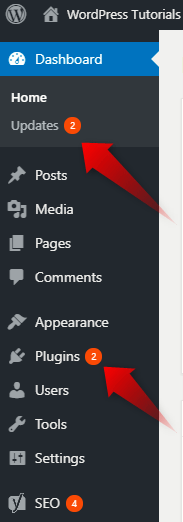
Although the process is pretty straightforward, here is a full and detailed tutorial on how to update a WordPress plugin.


For themes, you can expect to see something like this:
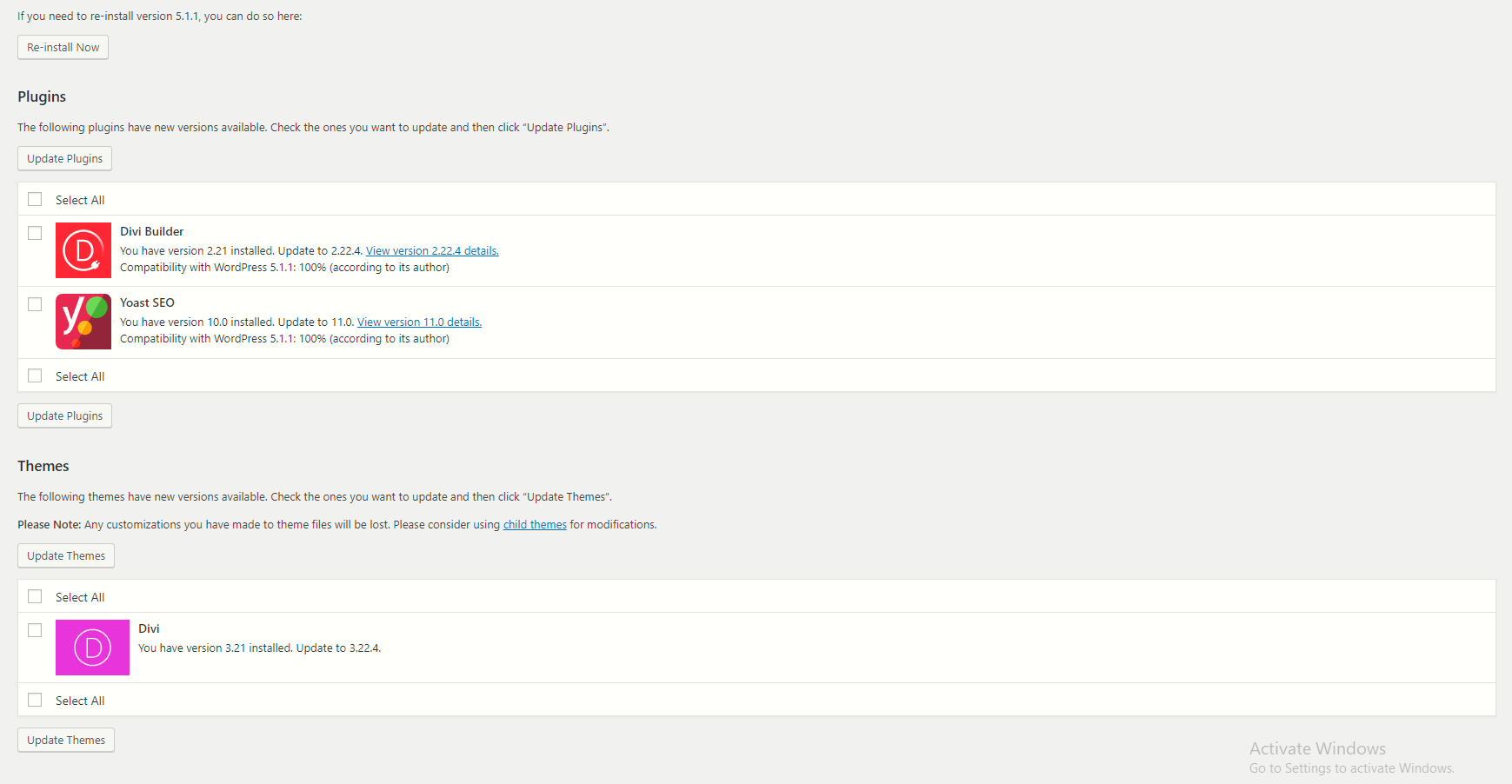
Also, you can check out our full guide on how to update a WordPress theme.


For WordPress itself, what you might expect to see is:

When you follow the link, you will be redirected to the WordPress updates page. Here is a full guide on how to update WordPress both automatically, and manually.

Was this post helpful?

i

Relevant tags:

Connect

Latest posts:

How to Fix 308 Permanent Redirect

308 Permanent Redirect is an HTTPS status code indicating that the requested resource has been permanently moved to another location. Similar to 301 Moved Permanently, 308 informs the user of the movement of a given online resource, and unlike the 301 redirect, 308...

How to Fix 301 Error Moved Permanently

The 301 Moved Permanently is an HTTP status code that indicates a permanent relocation of an online resource from a given URL to a new one. More technically, the moved resource has been moved to the new URL specified in the Location header. The HTTP 301 status code is...

How to Fix 307 Temporary Redirect

307 Temporary Redirect is a response HTTP status code that indicates the requested resource has been moved to a different URL for a limited period of time. Unlike a 301 permanent redirect, the 307 Temporary Redirect message indicates that the change is temporary and...

How to Access Crontab Settings

To access the crontab settings, first, you need to log in to your AwardSpace hosting panel. After you have logged in, head to Crontab Settings, located within the Advanced Tools category:   After you click the Crontab Settings icon, a new page should load. Once...

How to Check My Auto Renewals

To check your AwardSpace hosting plan auto-renewals, first log in to the admin dashboard. Then, head to Wallet, within the Orders & Invoices section:   After that, click the Auto Renewals tab, where you can check any relevant information about your hosting...


Create a website for free!


Free forever

Our Support Team is Here to Help


If you need any questions answered, don't hesitate and contact us. Click the button below and follow the instructions. You can expect an answer within an hour.


Contact AwardSpace


iNewest knowledge base articles

How to Fix 308 Permanent Redirect

308 Permanent Redirect is an HTTPS status code indicating that the requested resource has been permanently moved to another location. Similar to 301 Moved Permanently, 308 informs the user of the movement of a given online resource, and unlike the 301 redirect, 308...

How to Fix 301 Error Moved Permanently

The 301 Moved Permanently is an HTTP status code that indicates a permanent relocation of an online resource from a given URL to a new one. More technically, the moved resource has been moved to the new URL specified in the Location header. The HTTP 301 status code is...

How to Fix 307 Temporary Redirect

307 Temporary Redirect is a response HTTP status code that indicates the requested resource has been moved to a different URL for a limited period of time. Unlike a 301 permanent redirect, the 307 Temporary Redirect message indicates that the change is temporary and...

How to Access Crontab Settings

To access the crontab settings, first, you need to log in to your AwardSpace hosting panel. After you have logged in, head to Crontab Settings, located within the Advanced Tools category:   After you click the Crontab Settings icon, a new page should load. Once...

How to Check My Auto Renewals

To check your AwardSpace hosting plan auto-renewals, first log in to the admin dashboard. Then, head to Wallet, within the Orders & Invoices section:   After that, click the Auto Renewals tab, where you can check any relevant information about your hosting...

How to Check My Payment Requests

To check your payment requests, first log in to the AwardSpace hosting panel. Then, head to Wallet within the Orders & Invoices category:   Then, click the Payment Requests tab. There, you can browse all the information you need about your...

Even more web tutorials

Check out our web hosting knowledge base and the WordPress tutorials to learn more, and be better prepared for your website creation and maintenance journey.