
Where Can I See My Bandwidth Usage?

Home » Knowledge Base » Hosting Basics » Where Can I See My Bandwidth Usage?

As stated, both in our Terms of Services and in the Fair Use Policies Section of the present hosting knowledge base, if you choose to use the free hosting service, certain limits are to take place.

You can still create a fully functional website, using WordPress or any other CMS.

Although, as mentioned, there are some limitations of the service, probably the most important one is related to the bandwidth.

What is bandwidth?

Bandwidth is essentially web traffic. It refers to the amount of data that is being transferred between your website and your website visitors. The volume is measured in kilobytes (KB), megabytes (MB), and gigabytes (GB).

Where Can I See My Bandwidth Usage?

NB! The amount of data that you’ve been using is refreshed every month. Thus, if you have a small website that you can go on a few days without being online, you can simply wait until the end of the month, should you exceed the 5GB Bandwidth you have with AwardSpace’s Free Hosting.

On the other hand, if you really need your website to be online at all times, you might consider upgrading to a Premium Hosting Solution.

Although we’ve already covered the ins and outs of website statistics, here is a quick tutorial on how to find the amount of data, you’ve been using for the current month.


Step 1: Log in to your AwardSpace account

In order to see your bandwidth usage, the first thing you need to do is to log into your hosting control panel.

To do so, navigate to AwardSpace’s Login Page and submit the correct credentials.


Step 2: Check Your Bandwidth

Once you’ve entered the Hosting Control Panel, you can see the Website Statistics on the left side of your screen.
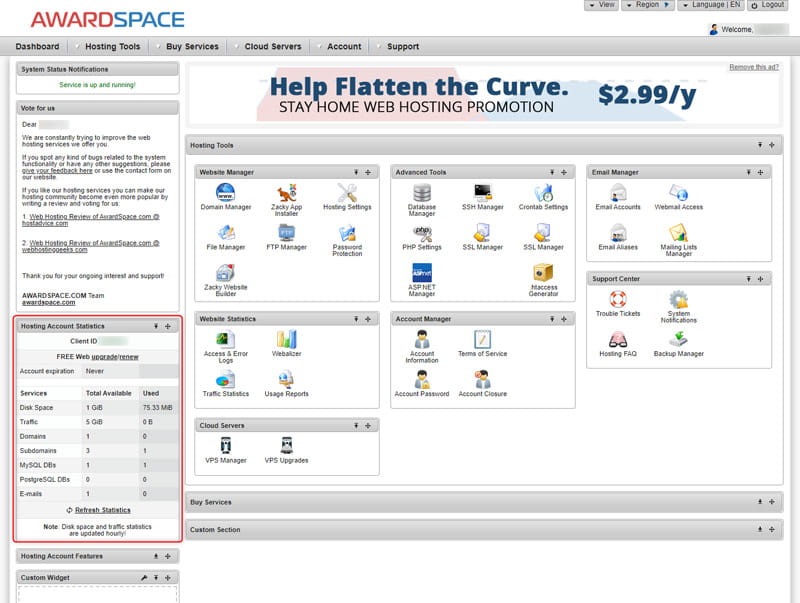
Here is a lot of data related to your hosting account, including the number of websites, databases, subdomains, etc.
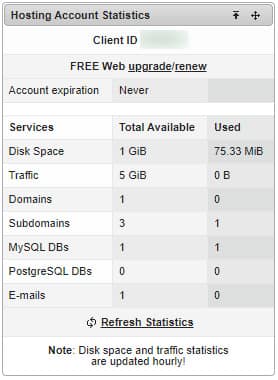
As you want to know how much bandwidth you’ve used, you need to look at the Traffic row. Namely, the second one. The account that we are using to show the method is a free hosting account, thus, it has 5 GiB available, and there are none used at the moment (for the month in question). Bear in mind that when uploading files, and making changes to your website you’ll still use the bandwidth available.

If you want, you could click the Refresh Statistics button at the bottom in order to see the current status of your data usage, and/or to troubleshoot any issues you might experience with the amount of traffic. For example, if you suspect that bots are crawling your website and thus, wasting your available 5GB of traffic, depriving actual visitors of seeing your work, you could try and see whether any traffic is occurring while double-checking in Google Analytics whether there are actual people on your website.


Step 3: Bandwidth Usage Details

If you want to see or need more details about your data usage, you can use the detailed traffic statistics by clicking on one of the options in the Website Statistics toolbar:
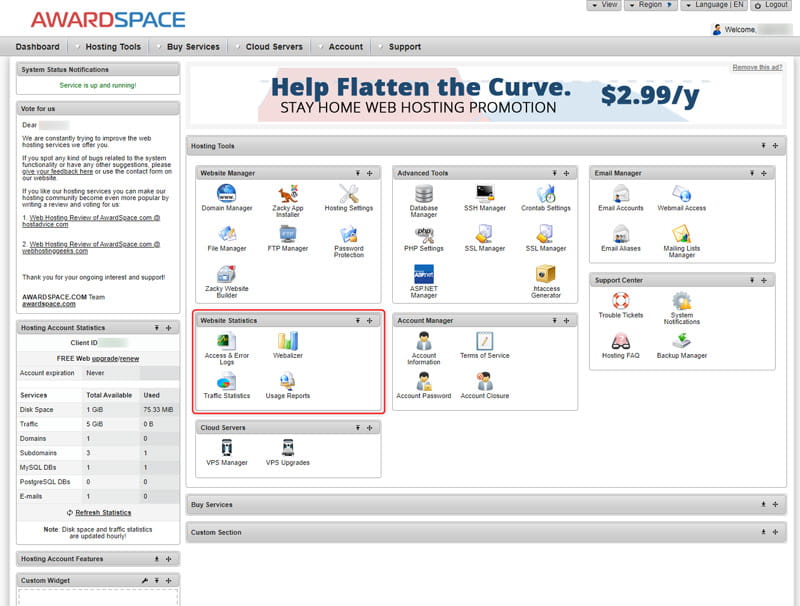
Bear in mind that in order to see the Webalizer, you have to enable it and the data you’ll see will start accumulating from the moment it is enabled.

Related: See more about reading and understanding your Website Traffic Statistics

Was this post helpful?

i

Relevant tags:

Connect

Latest posts:

How to Check My Auto Renewals

To check your AwardSpace hosting plan auto-renewals, first log in to the admin dashboard. Then, head to Wallet, within the Orders & Invoices section:   After that, click the Auto Renewals tab, where you can check any relevant information about your hosting...

How to Check My Payment Requests

To check your payment requests, first log in to the AwardSpace hosting panel. Then, head to Wallet within the Orders & Invoices category:   Then, click the Payment Requests tab. There, you can browse all the information you need about your...

How to Check My Invoices

To check your invoices in AwardSpace, first log in to the hosting panel. From there, head to Invoices within the Orders & Invoices category:   From this place, you can browse order references, payment orders, payment types, order dates, and various...

How to Check My Wallet Flow

To check your wallet flow, first log in to the AwardSpace hosting panel. Then, click on Wallet within Payments & Invoices:   After that, click the Wallet Flow tab. This is where you can see details about your wallet flaw:

How to Check My Incomplete Orders

To check your incomplete orders, first log in to the AwardSpace hosting panel. Then, head to Incomplete Orders within Orders & Invoices:   Then, you can check the list within the Incomplete Orders tab:  


Create a website for free!


Free forever

Our Support Team is Here to Help


If you need any questions answered, don't hesitate and contact us. Click the button below and follow the instructions. You can expect an answer within an hour.


Contact AwardSpace


iNewest knowledge base articles

How to Check My Auto Renewals

To check your AwardSpace hosting plan auto-renewals, first log in to the admin dashboard. Then, head to Wallet, within the Orders & Invoices section:   After that, click the Auto Renewals tab, where you can check any relevant information about your hosting...

How to Check My Payment Requests

To check your payment requests, first log in to the AwardSpace hosting panel. Then, head to Wallet within the Orders & Invoices category:   Then, click the Payment Requests tab. There, you can browse all the information you need about your...

How to Check My Invoices

To check your invoices in AwardSpace, first log in to the hosting panel. From there, head to Invoices within the Orders & Invoices category:   From this place, you can browse order references, payment orders, payment types, order dates, and various...

How to Check My Wallet Flow

To check your wallet flow, first log in to the AwardSpace hosting panel. Then, click on Wallet within Payments & Invoices:   After that, click the Wallet Flow tab. This is where you can see details about your wallet flaw:

How to Check My Incomplete Orders

To check your incomplete orders, first log in to the AwardSpace hosting panel. Then, head to Incomplete Orders within Orders & Invoices:   Then, you can check the list within the Incomplete Orders tab:  

How to Check My Canceled Orders

To check your canceled orders with AwardSpace, first, log in to the hosting panel. Then, head to Caneled Orders within the Orders & Invoices category:   Then, within the Canceled Orders tab, you can browse your canceled orders with AwardSpace:

Even more web tutorials

Check out our web hosting knowledge base and the WordPress tutorials to learn more, and be better prepared for your website creation and maintenance journey.