
What Does the “You have no privileges” Error Mean in phpMyAdmin?

Home » Knowledge Base » Databases » What Does the “You have no privileges” Error Mean in phpMyAdmin?
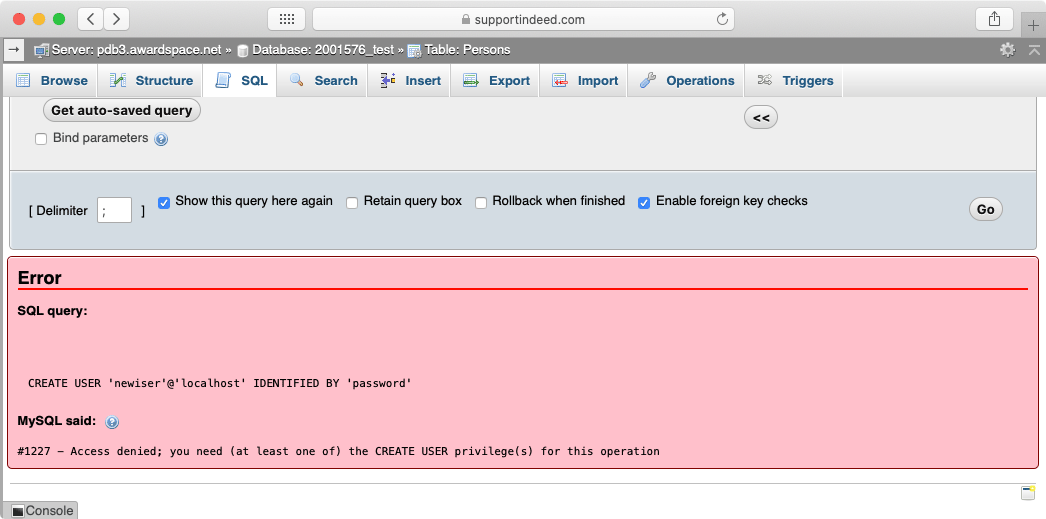
The dreaded “You have no privileges” error in phpMyAdmin.

PhpMyAdmin is a highly versatile tool for managing your databases. Not only does it come with an easy-to-use interface that is great for new users, but it also supports the execution of raw SQL commands, giving more advanced webmasters the flexibility they need. But from time to time, you may come across unexpected errors that can stop you dead in your tracks. One such error is “You have no privileges.” In this article, we will go over what this error means, when it occurs, and how to work around it.


What Does the “You have no privileges” Error Mean in phpMyAdmin?

The “You have no privileges” error in phpMyAdmin occurs whenever you attempt an operation that expects you to have full administrative control over the database server. Since you are using a shared hosting environment, your MySQL account is limited, and not all SQL commands are made available to you.

In fact, as a shared hosting user, you are allowed to have a single login for each of your databases. The login exactly matches the name that you have given to your database. For example, if you have a database called 10000_mydatabase, then the username you should use to access this database is also 10000_mydatabase.

These restrictions apply to our free website hosting, the premium shared hosting plans that we offer, and even our Semi-Dedicated web servers. Full unfettered access is only possible when using a Virtual Private Server package.


Which Commands Are Forbidden in a Shared Hosting Environment?
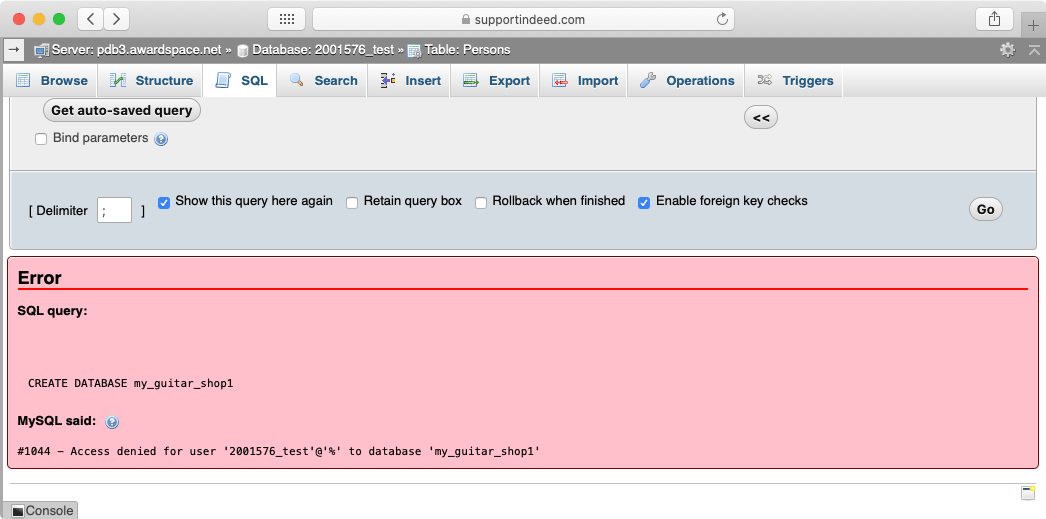
phpMyAdmin is unable to create a new MySQL database because the user has no privileges.

There are two broad categories of commands that are forbidden: those that manage users and those that manage entire databases. More specifically, you will not be able to create new users or grant new privileges to existing users using commands such as CREATE USER, GRANT or REVOKE. Similarly, you cannot make edits to databases as a whole. This includes the use of CREATE DATABASE to create a new database and DROP DATABASE to delete an existing database. All other commands, such as working with tables, data fields, views, and stored procedures, are still allowed.


How Can I Work Around These Limitations?
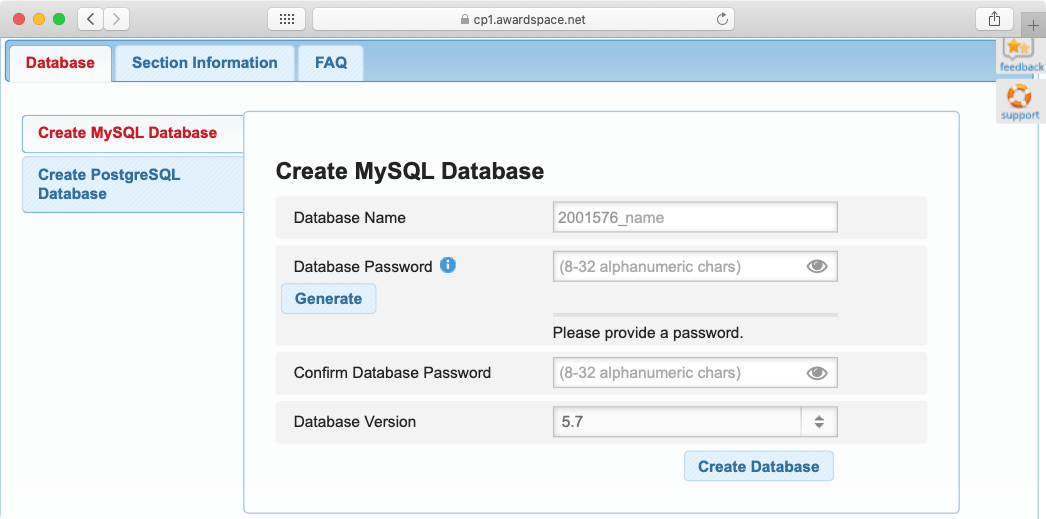
Database creation and deletion can be achieved using the dedicated Database Manager section of the Control Panel.

If you need to create a new database or delete an existing one, you should use the Database Manager section of our Control Panel. Renaming a database can be achieved by backing up the database, deleting it, creating a new database with the desired name, and finally importing your initial database backup. To learn more, you can check our in-depth overview of the Database Manager.

Database user management is, unfortunately, more restricted due to the nature of shared hosting. As we have previously outlined, it is not possible to add/remove users from your database. It is also not possible to grant yourself additional permissions and privileges. The only type of customization that is possible is the renaming of the default username. This is achieved by creating a brand new database with a name that matches the desired username.


Going Further With a Virtual Private Server

If you prefer to have full control over your hosting environment and not have to deal with shared hosting limitations, you should consider getting a VPS. A Virtual Private Server is a standalone Linux instance where you are given full root access. You get to choose every single program and package that is installed on the machine and even pick the operating system itself!

The only downside to using a Virtual Private Server is the fact that good working knowledge of Linux is required. The vast majority of VPS instances run Linux distributions that lack a graphical user interface in order to maximize performance. In other words, you need to be comfortable completely managing and maintaining your VPS through the command line.


Conclusion

While having a shared hosting account comes with many great benefits, it is by definition limited and this lack of advanced functionality may cause roadblocks you wouldn’t ordinarily experience. Using a Virtual Private Server for your hosting needs would resolve many of these issues and points of friction. Not having fine-grained control over your hosting space, including database management, and not being able to import an SQL backup in phpMyAdmin because it tries to create a database during its restoration process will all be a thing of the past.

Was this post helpful?

i

Relevant tags:

Connect

Latest posts:

How to Fix 308 Permanent Redirect

308 Permanent Redirect is an HTTPS status code indicating that the requested resource has been permanently moved to another location. Similar to 301 Moved Permanently, 308 informs the user of the movement of a given online resource, and unlike the 301 redirect, 308...

How to Fix 301 Error Moved Permanently

The 301 Moved Permanently is an HTTP status code that indicates a permanent relocation of an online resource from a given URL to a new one. More technically, the moved resource has been moved to the new URL specified in the Location header. The HTTP 301 status code is...

How to Fix 307 Temporary Redirect

307 Temporary Redirect is a response HTTP status code that indicates the requested resource has been moved to a different URL for a limited period of time. Unlike a 301 permanent redirect, the 307 Temporary Redirect message indicates that the change is temporary and...

How to Access Crontab Settings

To access the crontab settings, first, you need to log in to your AwardSpace hosting panel. After you have logged in, head to Crontab Settings, located within the Advanced Tools category:   After you click the Crontab Settings icon, a new page should load. Once...

How to Check My Auto Renewals

To check your AwardSpace hosting plan auto-renewals, first log in to the admin dashboard. Then, head to Wallet, within the Orders & Invoices section:   After that, click the Auto Renewals tab, where you can check any relevant information about your hosting...


Create a website for free!


Free forever

Our Support Team is Here to Help


If you need any questions answered, don't hesitate and contact us. Click the button below and follow the instructions. You can expect an answer within an hour.


Contact AwardSpace


iNewest knowledge base articles

How to Fix 308 Permanent Redirect

308 Permanent Redirect is an HTTPS status code indicating that the requested resource has been permanently moved to another location. Similar to 301 Moved Permanently, 308 informs the user of the movement of a given online resource, and unlike the 301 redirect, 308...

How to Fix 301 Error Moved Permanently

The 301 Moved Permanently is an HTTP status code that indicates a permanent relocation of an online resource from a given URL to a new one. More technically, the moved resource has been moved to the new URL specified in the Location header. The HTTP 301 status code is...

How to Fix 307 Temporary Redirect

307 Temporary Redirect is a response HTTP status code that indicates the requested resource has been moved to a different URL for a limited period of time. Unlike a 301 permanent redirect, the 307 Temporary Redirect message indicates that the change is temporary and...

How to Access Crontab Settings

To access the crontab settings, first, you need to log in to your AwardSpace hosting panel. After you have logged in, head to Crontab Settings, located within the Advanced Tools category:   After you click the Crontab Settings icon, a new page should load. Once...

How to Check My Auto Renewals

To check your AwardSpace hosting plan auto-renewals, first log in to the admin dashboard. Then, head to Wallet, within the Orders & Invoices section:   After that, click the Auto Renewals tab, where you can check any relevant information about your hosting...

How to Check My Payment Requests

To check your payment requests, first log in to the AwardSpace hosting panel. Then, head to Wallet within the Orders & Invoices category:   Then, click the Payment Requests tab. There, you can browse all the information you need about your...

Even more web tutorials

Check out our web hosting knowledge base and the WordPress tutorials to learn more, and be better prepared for your website creation and maintenance journey.